Windows 11

Windows 11 0xc000007b "The Application Was Unable to Start Correctly" Error Fix

If you get the "The application was unable to start correctly (0xc000007b)" error when trying to open a game or program, it is usually caused by a missing or corrupted runtime library (Visual C++, .NET, DirectX) or a 32/64-bit mismatch. Here is the step-by-step fix.
0xc000007b the application was unable to start correctly error
0xc000007b Fix Steps

Why Does the 0xc000007b Error Occur?

This error appears when an application cannot find a DLL library it needs, or when a 32-bit application is mistakenly paired with a 64-bit library (or vice versa). The most common causes are: missing/corrupted Visual C++ Redistributable packages, a damaged DirectX, an outdated .NET Framework, and corrupted application files.

Fix 1: Reinstall the Visual C++ Redistributable Packages

This is the most effective solution. From Microsoft's official site, download and install both the x86 (32-bit) and x64 (64-bit) versions of the Visual C++ Redistributable packages. Since many programs require different yearly versions, it is important to install the complete official packages rather than an "All in One" bundle. Restart your computer after installing.

Fix 2: Update DirectX

In games, this error is often caused by missing DirectX files. Download and run Microsoft's DirectX End-User Runtime Web Installer tool; it completes the missing DirectX components. Then try the game again.

Fix 3: Repair the .NET Framework

From the Turn Windows features on or off screen, make sure .NET Framework 3.5 and 4.x are checked. If the problem persists, run a repair with Microsoft's .NET Framework Repair Tool.

Fix 4: Try Running the App as Administrator and Reinstalling It

Right-click the application icon and choose Run as administrator. If that doesn't help, completely uninstall and reinstall the application; this clears the error when the application files are corrupted. For games, use the "verify integrity of game files" option through Steam/Epic.

Fix 5: Scan System Files

If there is general corruption, repair the system files in an administrator Terminal:

sfc /scannow
DISM /Online /Cleanup-Image /RestoreHealth

Once the process finishes, restart and open the application again.

Frequently Asked Questions (FAQ)

In which situation does 0xc000007b most often appear?

It most often appears in games and graphics-intensive programs, due to missing Visual C++ or DirectX libraries. Installing these packages completely resolves the majority of cases.

Do I have to install both the x86 and x64 packages?

Yes. Many 64-bit programs also use 32-bit components. Installing both prevents the 0xc000007b error caused by incompatibility.

It only happens with one specific program — what should I do?

Uninstall and reinstall that program, or if it's a game, verify its file integrity. The problem is most likely a corrupted file in that application.

Conclusion

The 0xc000007b error is almost always caused by missing runtime libraries. Installing the Visual C++ packages (x86 + x64) and DirectX completely resolves most cases. If it occurs with a single application, reinstalling that application is the most reliable solution.

Related Articles

Windows 11

Windows 11 0xc000007b "Die Anwendung konnte nicht korrekt gestartet werden" Fehler beheben

Wenn beim Versuch, ein Spiel oder Programm zu öffnen, der Fehler "Die Anwendung konnte nicht korrekt gestartet werden (0xc000007b)" erscheint, liegt das in der Regel an einer fehlenden oder beschädigten Laufzeitbibliothek (Visual C++, .NET, DirectX) oder an einer 32/64-Bit-Inkompatibilität. Hier ist die Schritt-für-Schritt-Lösung.

0xc000007b Die Anwendung konnte nicht korrekt gestartet werden Fehler
0xc000007b Lösungsschritte

Warum tritt der Fehler 0xc000007b auf?

Dieser Fehler tritt auf, wenn eine Anwendung eine benötigte DLL-Bibliothek nicht finden kann oder wenn eine 32-Bit-Anwendung versehentlich mit einer 64-Bit-Bibliothek (oder umgekehrt) kombiniert wird. Die häufigsten Ursachen sind: fehlende/beschädigte Visual C++ Redistributable-Pakete, ein beschädigtes DirectX, ein veraltetes .NET Framework und beschädigte Anwendungsdateien.

Lösung 1: Installieren Sie die Visual C++ Redistributable-Pakete neu

Dies ist die wirksamste Lösung. Laden Sie von der offiziellen Microsoft-Website sowohl die x86 (32-Bit)- als auch die x64 (64-Bit)-Version der Visual C++ Redistributable-Pakete herunter und installieren Sie diese. Da viele Programme unterschiedliche Jahresversionen benötigen, ist es wichtig, die vollständigen offiziellen Pakete anstelle eines "All in One"-Bundles zu installieren. Starten Sie Ihren Computer nach der Installation neu.

Lösung 2: Aktualisieren Sie DirectX

Bei Spielen wird dieser Fehler häufig durch fehlende DirectX-Dateien verursacht. Laden Sie das Tool DirectX End-User Runtime Web Installer von Microsoft herunter und führen Sie es aus; es ergänzt die fehlenden DirectX-Komponenten. Versuchen Sie das Spiel anschließend erneut.

Lösung 3: Reparieren Sie das .NET Framework

Stellen Sie im Fenster Windows-Features aktivieren oder deaktivieren sicher, dass .NET Framework 3.5 und 4.x aktiviert sind. Wenn das Problem weiterhin besteht, führen Sie mit dem .NET Framework Repair Tool von Microsoft eine Reparatur durch.

Lösung 4: Versuchen Sie, die App als Administrator auszuführen und neu zu installieren

Klicken Sie mit der rechten Maustaste auf das Anwendungssymbol und wählen Sie Als Administrator ausführen. Wenn das nicht hilft, deinstallieren Sie die Anwendung vollständig und installieren Sie sie neu; dies behebt den Fehler, wenn die Anwendungsdateien beschädigt sind. Verwenden Sie bei Spielen über Steam/Epic die Option "Integrität der Spieldateien überprüfen".

Lösung 5: Überprüfen Sie die Systemdateien

Wenn eine allgemeine Beschädigung vorliegt, reparieren Sie die Systemdateien in einem Administrator-Terminal:

sfc /scannow
DISM /Online /Cleanup-Image /RestoreHealth

Starten Sie nach Abschluss des Vorgangs neu und öffnen Sie die Anwendung erneut.

Häufig gestellte Fragen (FAQ)

In welcher Situation tritt 0xc000007b am häufigsten auf?

Am häufigsten tritt er bei Spielen und grafikintensiven Programmen auf, aufgrund fehlender Visual C++- oder DirectX-Bibliotheken. Die vollständige Installation dieser Pakete löst die meisten Fälle.

Muss ich sowohl das x86- als auch das x64-Paket installieren?

Ja. Viele 64-Bit-Programme verwenden auch 32-Bit-Komponenten. Die Installation beider Pakete verhindert den durch Inkompatibilität verursachten Fehler 0xc000007b.

Er tritt nur bei einem bestimmten Programm auf — was soll ich tun?

Deinstallieren Sie dieses Programm und installieren Sie es neu, oder überprüfen Sie bei einem Spiel die Dateiintegrität. Das Problem ist höchstwahrscheinlich eine beschädigte Datei in dieser Anwendung.

Fazit

Der Fehler 0xc000007b wird fast immer durch fehlende Laufzeitbibliotheken verursacht. Die vollständige Installation der Visual C++-Pakete (x86 + x64) und von DirectX löst die meisten Fälle. Tritt er bei einer einzelnen Anwendung auf, ist die Neuinstallation dieser Anwendung die zuverlässigste Lösung.

Verwandte Artikel

Windows 11

Solution à l'erreur Windows 11 0xc000007b "L'application n'a pas pu démarrer correctement"

Si vous obtenez l'erreur "L'application n'a pas pu démarrer correctement (0xc000007b)" lorsque vous essayez d'ouvrir un jeu ou un programme, cela provient généralement d'une bibliothèque d'exécution manquante ou corrompue (Visual C++, .NET, DirectX) ou d'une incompatibilité 32/64 bits. Voici la solution étape par étape.

0xc000007b l'application n'a pas pu démarrer correctement erreur
Étapes de résolution du 0xc000007b

Pourquoi l'erreur 0xc000007b survient-elle ?

Cette erreur apparaît lorsqu'une application ne parvient pas à trouver une bibliothèque DLL dont elle a besoin, ou lorsqu'une application 32 bits est associée par erreur à une bibliothèque 64 bits (ou inversement). Les causes les plus fréquentes sont : des paquets Visual C++ Redistributable manquants/corrompus, un DirectX endommagé, un .NET Framework obsolète et des fichiers d'application corrompus.

Solution 1 : Réinstallez les paquets Visual C++ Redistributable

C'est la solution la plus efficace. Depuis le site officiel de Microsoft, téléchargez et installez à la fois les versions x86 (32 bits) et x64 (64 bits) des paquets Visual C++ Redistributable. Étant donné que de nombreux programmes nécessitent différentes versions annuelles, il est important d'installer les paquets officiels complets plutôt qu'un bundle "All in One". Redémarrez votre ordinateur après l'installation.

Solution 2 : Mettez à jour DirectX

Dans les jeux, cette erreur est souvent causée par des fichiers DirectX manquants. Téléchargez et exécutez l'outil DirectX End-User Runtime Web Installer de Microsoft ; il complète les composants DirectX manquants. Réessayez ensuite le jeu.

Solution 3 : Réparez le .NET Framework

Dans la fenêtre Activer ou désactiver des fonctionnalités Windows, assurez-vous que .NET Framework 3.5 et 4.x sont cochés. Si le problème persiste, effectuez une réparation avec l'outil .NET Framework Repair Tool de Microsoft.

Solution 4 : Essayez d'exécuter l'application en tant qu'administrateur et de la réinstaller

Faites un clic droit sur l'icône de l'application et choisissez Exécuter en tant qu'administrateur. Si cela ne fonctionne pas, désinstallez complètement l'application puis réinstallez-la ; cela élimine l'erreur lorsque les fichiers de l'application sont corrompus. Pour les jeux, utilisez l'option "vérifier l'intégrité des fichiers du jeu" via Steam/Epic.

Solution 5 : Analysez les fichiers système

S'il existe une corruption générale, réparez les fichiers système dans un Terminal administrateur :

sfc /scannow
DISM /Online /Cleanup-Image /RestoreHealth

Une fois le processus terminé, redémarrez et rouvrez l'application.

Questions fréquemment posées (FAQ)

Dans quelle situation l'erreur 0xc000007b apparaît-elle le plus souvent ?

Elle apparaît le plus souvent dans les jeux et les programmes gourmands en graphismes, en raison de bibliothèques Visual C++ ou DirectX manquantes. L'installation complète de ces paquets résout la majorité des cas.

Dois-je installer à la fois le paquet x86 et le paquet x64 ?

Oui. De nombreux programmes 64 bits utilisent également des composants 32 bits. L'installation des deux empêche l'erreur 0xc000007b causée par une incompatibilité.

Cela ne se produit qu'avec un seul programme précis — que dois-je faire ?

Désinstallez et réinstallez ce programme, ou s'il s'agit d'un jeu, vérifiez l'intégrité de ses fichiers. Le problème est très probablement un fichier corrompu dans cette application.

Conclusion

L'erreur 0xc000007b est presque toujours causée par des bibliothèques d'exécution manquantes. L'installation complète des paquets Visual C++ (x86 + x64) et de DirectX résout la plupart des cas. Si elle survient avec une seule application, réinstaller cette application est la solution la plus fiable.

Articles liés

Windows 11

Soluzione all'errore Windows 11 0xc000007b "Impossibile avviare correttamente l'applicazione"

Se riceve l'errore "Impossibile avviare correttamente l'applicazione (0xc000007b)" quando tenta di aprire un gioco o un programma, la causa è solitamente una libreria di runtime mancante o danneggiata (Visual C++, .NET, DirectX) oppure un'incompatibilità 32/64 bit. Ecco la soluzione passo dopo passo.

0xc000007b impossibile avviare correttamente l'applicazione errore
Passaggi per risolvere 0xc000007b

Perché si verifica l'errore 0xc000007b?

Questo errore compare quando un'applicazione non riesce a trovare una libreria DLL di cui ha bisogno, oppure quando un'applicazione a 32 bit viene erroneamente abbinata a una libreria a 64 bit (o viceversa). Le cause più comuni sono: pacchetti Visual C++ Redistributable mancanti/danneggiati, un DirectX danneggiato, un .NET Framework non aggiornato e file dell'applicazione corrotti.

Soluzione 1: reinstallare i pacchetti Visual C++ Redistributable

È la soluzione più efficace. Dal sito ufficiale di Microsoft, scarichi e installi sia la versione x86 (32 bit) sia la versione x64 (64 bit) dei pacchetti Visual C++ Redistributable. Poiché molti programmi richiedono diverse versioni annuali, è importante installare i pacchetti ufficiali completi anziché un bundle "All in One". Riavvii il computer al termine dell'installazione.

Soluzione 2: aggiornare DirectX

Nei giochi, questo errore è spesso causato da file DirectX mancanti. Scarichi ed esegua lo strumento DirectX End-User Runtime Web Installer di Microsoft; completerà i componenti DirectX mancanti. Quindi riprovi con il gioco.

Soluzione 3: riparare il .NET Framework

Dalla finestra Attivazione o disattivazione delle funzionalità di Windows, si assicuri che .NET Framework 3.5 e 4.x siano selezionati. Se il problema persiste, esegua una riparazione con lo strumento .NET Framework Repair Tool di Microsoft.

Soluzione 4: provare a eseguire l'applicazione come amministratore e a reinstallarla

Faccia clic con il tasto destro sull'icona dell'applicazione e scelga Esegui come amministratore. Se non funziona, disinstalli completamente l'applicazione e la reinstalli; questo elimina l'errore quando i file dell'applicazione sono danneggiati. Per i giochi, utilizzi l'opzione "verifica integrità dei file di gioco" tramite Steam/Epic.

Soluzione 5: analizzare i file di sistema

In caso di danneggiamento generale, ripari i file di sistema in un Terminale come amministratore:

sfc /scannow
DISM /Online /Cleanup-Image /RestoreHealth

Al termine del processo, riavvii e riapra l'applicazione.

Domande frequenti (FAQ)

In quale situazione compare più spesso l'errore 0xc000007b?

Compare più spesso nei giochi e nei programmi ad alta intensità grafica, a causa di librerie Visual C++ o DirectX mancanti. L'installazione completa di questi pacchetti risolve la maggior parte dei casi.

Devo installare sia il pacchetto x86 sia il pacchetto x64?

Sì. Molti programmi a 64 bit utilizzano anche componenti a 32 bit. Installarli entrambi previene l'errore 0xc000007b causato da incompatibilità.

Si verifica solo con un programma specifico — cosa devo fare?

Disinstalli e reinstalli quel programma, oppure se si tratta di un gioco verifichi l'integrità dei suoi file. Il problema è molto probabilmente un file danneggiato in quell'applicazione.

Conclusione

L'errore 0xc000007b è quasi sempre causato da librerie di runtime mancanti. L'installazione completa dei pacchetti Visual C++ (x86 + x64) e di DirectX risolve la maggior parte dei casi. Se si verifica con una singola applicazione, reinstallare quell'applicazione è la soluzione più affidabile.

Articoli correlati

Windows 11

Решение ошибки Windows 11 0xc000007b "Не удалось правильно запустить приложение"

Если при попытке открыть игру или программу Вы получаете ошибку "Не удалось правильно запустить приложение (0xc000007b)", обычно она вызвана отсутствующей или повреждённой библиотекой времени выполнения (Visual C++, .NET, DirectX) либо несовместимостью 32/64-бит. Вот пошаговое решение.

0xc000007b не удалось правильно запустить приложение ошибка
Шаги решения 0xc000007b

Почему возникает ошибка 0xc000007b?

Эта ошибка появляется, когда приложение не может найти необходимую ему DLL-библиотеку, либо когда 32-битное приложение по ошибке сопоставляется с 64-битной библиотекой (или наоборот). Наиболее частые причины: отсутствующие/повреждённые пакеты Visual C++ Redistributable, повреждённый DirectX, устаревший .NET Framework и повреждённые файлы приложения.

Решение 1: переустановите пакеты Visual C++ Redistributable

Это самое эффективное решение. С официального сайта Microsoft загрузите и установите как x86 (32-бит), так и x64 (64-бит) версии пакетов Visual C++ Redistributable. Поскольку многим программам требуются разные годовые версии, важно установить полные официальные пакеты, а не сборку "All in One". После установки перезагрузите компьютер.

Решение 2: обновите DirectX

В играх эта ошибка часто вызвана отсутствующими файлами DirectX. Загрузите и запустите инструмент DirectX End-User Runtime Web Installer от Microsoft; он восполнит недостающие компоненты DirectX. Затем попробуйте игру снова.

Решение 3: восстановите .NET Framework

В окне Включение или отключение компонентов Windows убедитесь, что .NET Framework 3.5 и 4.x отмечены. Если проблема сохраняется, выполните восстановление с помощью инструмента .NET Framework Repair Tool от Microsoft.

Решение 4: попробуйте запустить приложение от имени администратора и переустановить его

Щёлкните правой кнопкой мыши по значку приложения и выберите Запуск от имени администратора. Если это не помогает, полностью удалите приложение и установите заново; это устраняет ошибку, когда файлы приложения повреждены. Для игр воспользуйтесь опцией "проверить целостность файлов игры" через Steam/Epic.

Решение 5: проверьте системные файлы

Если имеется общее повреждение, восстановите системные файлы в Терминале от имени администратора:

sfc /scannow
DISM /Online /Cleanup-Image /RestoreHealth

После завершения процесса перезагрузите компьютер и снова откройте приложение.

Часто задаваемые вопросы (FAQ)

В какой ситуации 0xc000007b возникает чаще всего?

Чаще всего она возникает в играх и графически насыщенных программах из-за отсутствующих библиотек Visual C++ или DirectX. Полная установка этих пакетов решает большинство случаев.

Обязательно ли устанавливать и пакет x86, и пакет x64?

Да. Многие 64-битные программы также используют 32-битные компоненты. Установка обоих предотвращает ошибку 0xc000007b, вызванную несовместимостью.

Ошибка возникает только с одной конкретной программой — что делать?

Удалите эту программу и установите заново, а если это игра — проверьте целостность её файлов. Скорее всего, проблема в повреждённом файле этого приложения.

Заключение

Ошибка 0xc000007b почти всегда вызвана отсутствующими библиотеками времени выполнения. Полная установка пакетов Visual C++ (x86 + x64) и DirectX решает большинство случаев. Если она возникает с одним конкретным приложением, его переустановка — самое надёжное решение.

Связанные статьи

Windows 11

Windows 11 0xc000007b "Uygulama Düzgün Başlatılamadı" Hatası Çözümü

Bir oyunu veya programı açmaya çalıştığınızda "Uygulama düzgün başlatılamadı (0xc000007b)" hatası çıkıyorsa, genellikle eksik veya bozuk bir çalışma zamanı kitaplığı (Visual C++, .NET, DirectX) ya da 32/64-bit uyumsuzluğu söz konusudur. İşte adım adım çözümü.

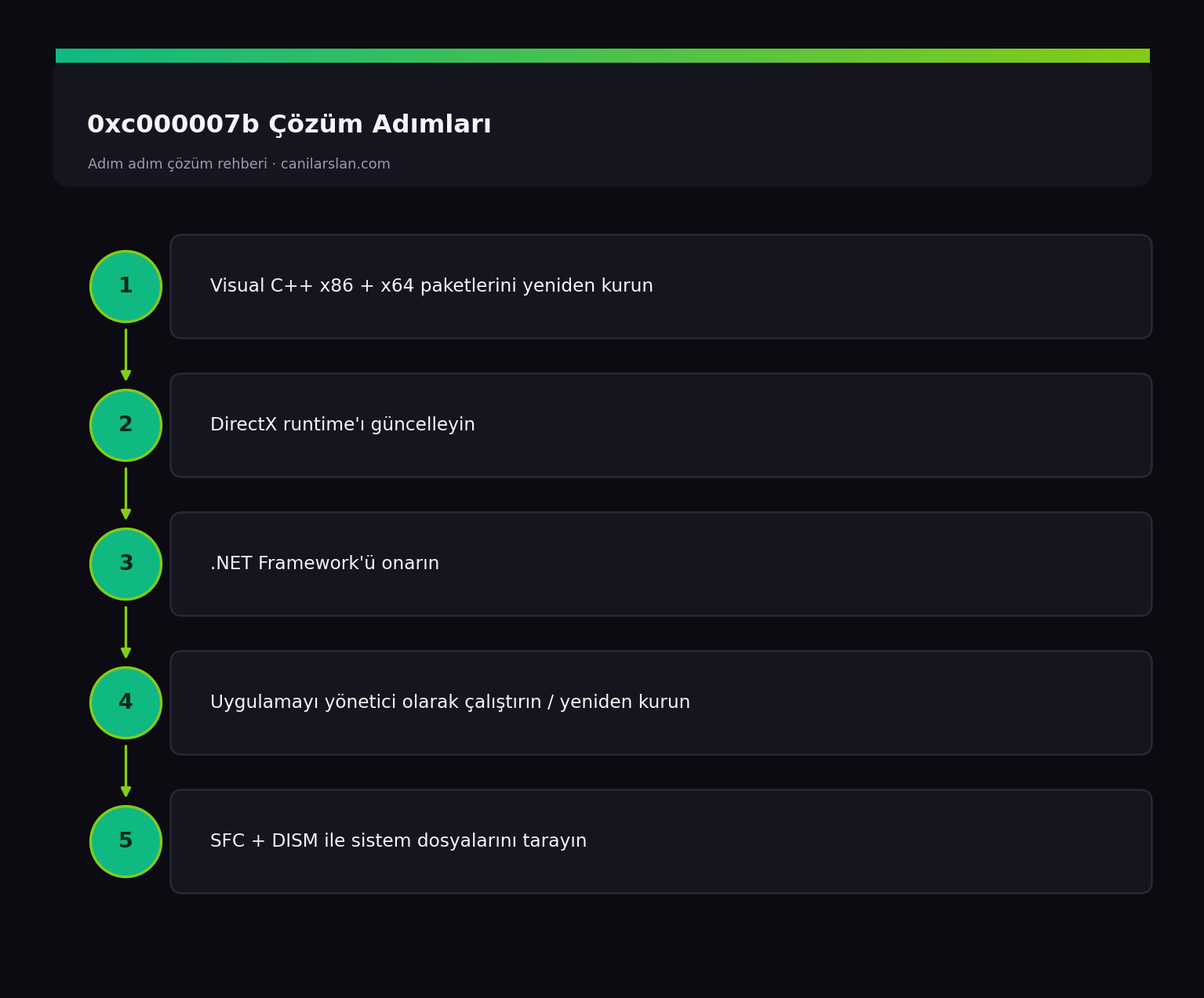
0xc000007b uygulama düzgün başlatılamadı hatası
0xc000007b Çözüm Adımları

0xc000007b Hatası Neden Olur?

Bu hata, bir uygulamanın ihtiyaç duyduğu DLL kitaplığını bulamadığında veya 32-bit bir uygulamanın yanlışlıkla 64-bit kitaplıkla (ya da tersi) eşleştiğinde ortaya çıkar. En sık nedenler: eksik/bozuk Visual C++ Redistributable paketleri, hasarlı DirectX, güncel olmayan .NET Framework ve bozuk uygulama dosyalarıdır.

Çözüm 1: Visual C++ Redistributable Paketlerini Yeniden Kurun

En etkili çözüm budur. Microsoft'un resmi sitesinden Visual C++ Redistributable paketlerinin hem x86 (32-bit) hem x64 (64-bit) sürümlerini indirip kurun. Birçok program farklı yıl sürümlerine ihtiyaç duyduğu için "All in One" yerine güncel resmi paketleri eksiksiz kurmak önemlidir. Kurduktan sonra bilgisayarı yeniden başlatın.

Çözüm 2: DirectX'i Güncelleyin

Oyunlarda bu hata sık sık eksik DirectX dosyalarından kaynaklanır. Microsoft'un DirectX End-User Runtime Web Installer aracını indirip çalıştırın; eksik DirectX bileşenlerini tamamlar. Ardından oyunu tekrar deneyin.

Çözüm 3: .NET Framework'ü Onarın

Windows özelliklerini aç/kapat ekranından .NET Framework 3.5 ve 4.x'in işaretli olduğundan emin olun. Sorun sürerse Microsoft'un .NET Framework Repair Tool aracıyla onarım yapın.

Çözüm 4: Uygulamayı Yönetici Olarak ve Yeniden Kurarak Deneyin

Uygulama simgesine sağ tıklayıp Yönetici olarak çalıştır deyin. Çözmezse uygulamayı tamamen kaldırıp yeniden kurun; uygulama dosyaları bozuksa bu hatayı temizler. Oyunlarda Steam/Epic üzerinden "oyun dosyalarının bütünlüğünü doğrula" seçeneğini kullanın.

Çözüm 5: Sistem Dosyalarını Tarayın

Genel bir bozulma varsa yönetici Terminal'de sistem dosyalarını onarın:

sfc /scannow
DISM /Online /Cleanup-Image /RestoreHealth

İşlem bitince yeniden başlatıp uygulamayı tekrar açın.

Sıkça Sorulan Sorular (SSS)

0xc000007b en çok hangi durumda çıkar?

En sık oyun ve grafik yoğun programlarda, eksik Visual C++ veya DirectX kitaplıkları yüzünden çıkar. Bu paketleri eksiksiz kurmak vakaların çoğunu çözer.

Hem x86 hem x64 paketini kurmam şart mı?

Evet. Birçok 64-bit program 32-bit bileşenler de kullanır. İkisini birden kurmak uyumsuzluk kaynaklı 0xc000007b hatasını engeller.

Sadece tek bir programda çıkıyor, ne yapmalıyım?

O programı kaldırıp yeniden kurun veya oyunsa dosya bütünlüğünü doğrulayın. Sorun büyük olasılıkla o uygulamanın bozuk dosyasındadır.

Sonuç

0xc000007b hatası neredeyse her zaman eksik çalışma zamanı kitaplıklarından kaynaklanır. Visual C++ paketlerini (x86 + x64) ve DirectX'i eksiksiz kurmak çoğu vakayı çözer. Tek bir uygulamada çıkıyorsa o uygulamayı yeniden kurmak en kesin çözümdür.

İlgili Yazılar