If you get the "Windows cannot connect to the printer (0x0000011b)" error when trying to connect to a printer shared over the network at the office or at home, the problem is not your printer; it lies in the Print Spooler security layer introduced by a Windows security update. Here are the safe ways to fix it.
Why Does the 0x0000011b Error Appear?
This error appeared with the update Microsoft released to close a security vulnerability in the print spooler (PrintNightmare). The update raised the authentication level for shared printers; however, when the security settings of the computer sharing the printer and the one connecting to it don't match, the connection is rejected with 0x0000011b.
Solution 1: Update Both Computers
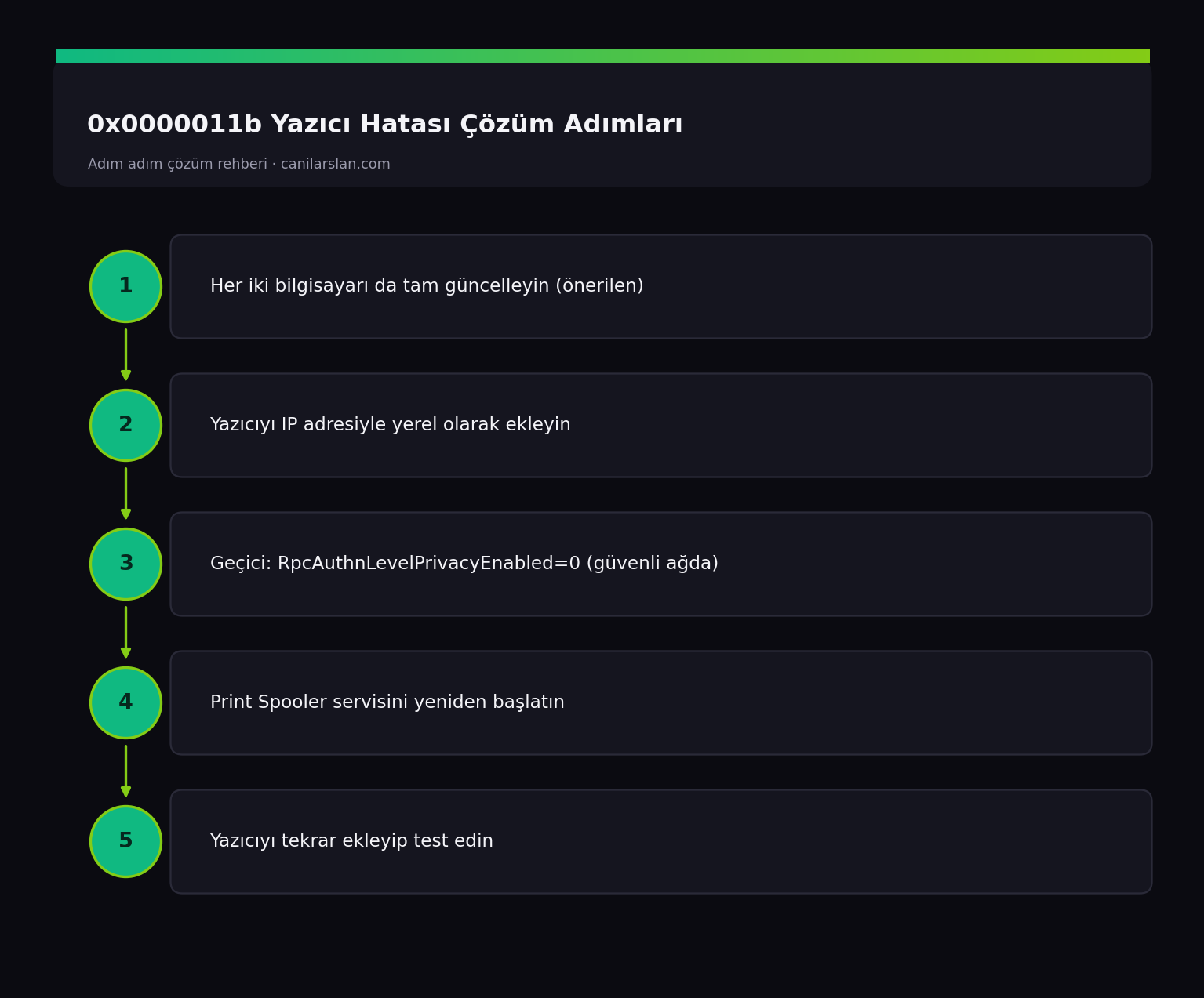
The healthiest and safest solution: install all updates from Settings > Windows Update on both the computer sharing the printer (the server) and the one trying to connect (the client). When the security level of the two devices is aligned, the connection usually recovers. This is the preferred method that does not compromise security.
Solution 2: Add the Printer Locally by IP
Adding the printer directly by its IP address instead of through sharing bypasses the connection problem. Follow this path: Settings > Bluetooth & devices > Printers & scanners > Add device > Add manually > Add a printer using a TCP/IP address and enter the printer's network IP address. Because this method skips the sharing layer entirely, it resolves 0x0000011b.
Solution 3: Workaround — Registry Setting
If the methods above are not possible, you can temporarily apply a registry setting on the client computer that disables authentication privacy. In an Administrator Terminal:
reg add "HKLM\System\CurrentControlSet\Control\Print" /v RpcAuthnLevelPrivacyEnabled /t REG_DWORD /d 0 /fThen restart the computer. Important security note: This setting reopens the security vulnerability that the update closed. Use it only on a local network you trust and only as a temporary workaround; for a permanent fix, prefer method 1 or 2.
Solution 4: Restart the Print Spooler
If the connection still won't establish, reset the print service. Open services.msc, right-click the Print Spooler service and choose Restart, then add the printer again.
Frequently Asked Questions (FAQ)
Does the 0x0000011b error mean my printer is faulty?
No. The printer is fine; the problem is a mismatch in Windows' printing security layer. Updating the devices or adding the printer by IP fixes it.
Is it safe to apply the registry setting?
Because this setting reopens a security vulnerability, it is recommended only on trusted local networks and only temporarily. The permanent and safe solution is to update both computers or add the printer by IP.
Which is the most permanent solution?
Adding the printer directly by its TCP/IP address instead of through sharing neither creates a security vulnerability nor is affected by update mismatches.
Conclusion
0x0000011b is caused by a print spooler mismatch introduced by a security update. The safest solution is to update both computers or add the printer locally by IP address. The registry setting should only be used as a temporary workaround on trusted networks.