Windows 11

Microsoft Store Won't Open on Windows 11 / Fix for Error 0x80131500

You click on Microsoft Store but the app won't open, or when it does it throws an error like 0x80131500 or just sits on a blank screen. Usually the problem is a corrupted cache, an incorrect date/time, or your network settings. Here is the step-by-step fix.
Windows 11 Microsoft Store error 0x80131500
Steps to Fix Microsoft Store Not Opening

Why Won't the Store Open?

Microsoft Store needs the correct date/time, a healthy internet connection, and an intact app cache to work. The most common causes are: a corrupted Store cache, an incorrect system time/region, a proxy/DNS that blocks the connection, a damaged Store app, and corrupted system files.

Fix 1: Reset the Store Cache (wsreset)

The most effective first step is clearing the cache. Open Win + R and run the following:

wsreset.exe

An empty command window stays open for a few seconds, then the Store opens on its own. This resolves most issues caused by a corrupted cache.

Fix 2: Check the Date, Time and Region

An incorrect system time prevents the Store from establishing a secure connection with the servers. Go to Settings > Time & language > Date & time, turn on Set time automatically and Set time zone automatically, then click Sync now.

Fix 3: Store Troubleshooter and App Repair

Run the Settings > System > Troubleshoot > Other troubleshooters > Windows Store Apps troubleshooter. Then go to Settings > Apps > Installed apps, find Microsoft Store, open Advanced options, and first click Repair; if that doesn't fix it, click Reset. Repair keeps your data, while Reset reinstalls the app from scratch.

Fix 4: Reset Network and DNS Settings

For connection-related issues, reset the network in an administrator Terminal:

ipconfig /flushdns
netsh winsock reset

Restart the computer after running the commands. If you use a proxy, turn it off from Settings > Network & internet > Proxy and try again.

Fix 5: Re-register the Store with PowerShell

If the Store still won't open, re-register the app. Open PowerShell as administrator and run this command:

Get-AppxPackage -allusers Microsoft.WindowsStore | Foreach {Add-AppxPackage -DisableDevelopmentMode -Register "$($_.InstallLocation)\AppXManifest.xml"}

Restart once the process finishes. This command re-registers the Store app on the system and repairs broken installations.

Frequently Asked Questions (FAQ)

What does wsreset do, does it delete data?

wsreset only clears the Store's cache; it does not delete your installed apps or your account. It is the fastest fix for launch problems caused by a corrupted cache.

What exactly does error 0x80131500 indicate?

It usually indicates that the Store can't connect to the server; the cause is most often an incorrect date/time, DNS, or proxy issue. Fixing these resolves the error.

What if none of the methods work?

Create a new local user account and try the Store there; if the problem is a corrupted profile, this solves it. As a last resort, you can refresh the system with "Reset this PC".

Conclusion

If Microsoft Store won't open, the cause is usually a corrupted cache, an incorrect time, or a network setting. wsreset, fixing the date/time, and repairing the app resolve most cases. For stubborn situations, re-registering the Store with PowerShell delivers a definitive result.

Related Articles

Windows 11

Microsoft Store öffnet nicht unter Windows 11 / Lösung für Fehler 0x80131500

Sie klicken auf den Microsoft Store, aber die App öffnet sich nicht, oder wenn sie sich öffnet, zeigt sie einen Fehler wie 0x80131500 oder bleibt einfach auf einem leeren Bildschirm hängen. Meist liegt das Problem an einem beschädigten Cache, einem falschen Datum bzw. einer falschen Uhrzeit oder an Ihren Netzwerkeinstellungen. Hier ist die Schritt-für-Schritt-Lösung.

Windows 11 Microsoft Store Fehler 0x80131500
Schritte zur Behebung, wenn der Microsoft Store nicht öffnet

Warum öffnet sich der Store nicht?

Der Microsoft Store benötigt zum Funktionieren das korrekte Datum bzw. die korrekte Uhrzeit, eine stabile Internetverbindung und einen intakten App-Cache. Die häufigsten Ursachen sind: ein beschädigter Store-Cache, eine falsche Systemzeit bzw. -region, ein Proxy/DNS, der die Verbindung blockiert, eine beschädigte Store-App und beschädigte Systemdateien.

Lösung 1: Den Store-Cache zurücksetzen (wsreset)

Der wirksamste erste Schritt ist das Leeren des Caches. Öffnen Sie Win + R und führen Sie Folgendes aus:

wsreset.exe

Ein leeres Befehlsfenster bleibt einige Sekunden geöffnet, danach öffnet sich der Store von selbst. Dies behebt die meisten Probleme, die durch einen beschädigten Cache verursacht werden.

Lösung 2: Datum, Uhrzeit und Region prüfen

Eine falsche Systemzeit verhindert, dass der Store eine sichere Verbindung mit den Servern herstellen kann. Gehen Sie zu Einstellungen > Zeit & Sprache > Datum & Uhrzeit, aktivieren Sie Uhrzeit automatisch festlegen und Zeitzone automatisch festlegen und klicken Sie dann auf Jetzt synchronisieren.

Lösung 3: Store-Problembehandlung und App-Reparatur

Führen Sie die Problembehandlung unter Einstellungen > System > Problembehandlung > Andere Problembehandlungen > Windows Store-Apps aus. Gehen Sie anschließend zu Einstellungen > Apps > Installierte Apps, suchen Sie Microsoft Store, öffnen Sie Erweiterte Optionen und klicken Sie zuerst auf Reparieren; falls das nicht hilft, klicken Sie auf Zurücksetzen. Beim Reparieren bleiben Ihre Daten erhalten, während beim Zurücksetzen die App von Grund auf neu installiert wird.

Lösung 4: Netzwerk- und DNS-Einstellungen zurücksetzen

Bei verbindungsbezogenen Problemen setzen Sie das Netzwerk in einem Terminal mit Administratorrechten zurück:

ipconfig /flushdns
netsh winsock reset

Starten Sie den Computer nach dem Ausführen der Befehle neu. Wenn Sie einen Proxy verwenden, schalten Sie ihn unter Einstellungen > Netzwerk & Internet > Proxy aus und versuchen Sie es erneut.

Lösung 5: Den Store mit PowerShell neu registrieren

Wenn sich der Store immer noch nicht öffnet, registrieren Sie die App neu. Öffnen Sie PowerShell als Administrator und führen Sie diesen Befehl aus:

Get-AppxPackage -allusers Microsoft.WindowsStore | Foreach {Add-AppxPackage -DisableDevelopmentMode -Register "$($_.InstallLocation)\AppXManifest.xml"}

Starten Sie den Computer neu, sobald der Vorgang abgeschlossen ist. Dieser Befehl registriert die Store-App im System neu und repariert beschädigte Installationen.

Häufig gestellte Fragen (FAQ)

Was macht wsreset, werden dabei Daten gelöscht?

wsreset leert lediglich den Cache des Stores; Ihre installierten Apps oder Ihr Konto werden nicht gelöscht. Es ist die schnellste Lösung für Startprobleme, die durch einen beschädigten Cache verursacht werden.

Was genau bedeutet der Fehler 0x80131500?

Er weist normalerweise darauf hin, dass der Store keine Verbindung zum Server herstellen kann; die Ursache ist meist ein falsches Datum bzw. eine falsche Uhrzeit, ein DNS- oder ein Proxy-Problem. Wenn Sie diese beheben, ist der Fehler behoben.

Was, wenn keine der Methoden funktioniert?

Erstellen Sie ein neues lokales Benutzerkonto und probieren Sie den Store dort aus; wenn das Problem ein beschädigtes Profil ist, wird es dadurch gelöst. Als letzten Ausweg können Sie das System mit „Diesen PC zurücksetzen“ auffrischen.

Fazit

Wenn der Microsoft Store nicht öffnet, ist die Ursache meist ein beschädigter Cache, eine falsche Uhrzeit oder eine Netzwerkeinstellung. wsreset, das Korrigieren von Datum/Uhrzeit und das Reparieren der App lösen die meisten Fälle. In hartnäckigen Situationen liefert das Neuregistrieren des Stores mit PowerShell ein eindeutiges Ergebnis.

Verwandte Artikel

Windows 11

Le Microsoft Store ne s'ouvre pas sous Windows 11 / Solution à l'erreur 0x80131500

Vous cliquez sur le Microsoft Store mais l'application ne s'ouvre pas, ou lorsqu'elle s'ouvre, elle affiche une erreur comme 0x80131500 ou reste simplement sur un écran vide. Le problème vient généralement d'un cache corrompu, d'une date/heure incorrecte ou de vos paramètres réseau. Voici la solution étape par étape.

Windows 11 Microsoft Store erreur 0x80131500
Étapes pour résoudre l'ouverture impossible du Microsoft Store

Pourquoi le Store ne s'ouvre-t-il pas ?

Pour fonctionner, le Microsoft Store a besoin d'une date/heure correcte, d'une connexion Internet saine et d'un cache d'application intact. Les causes les plus fréquentes sont : un cache du Store corrompu, une heure/région système incorrecte, un proxy/DNS qui bloque la connexion, une application Store endommagée et des fichiers système corrompus.

Solution 1 : Réinitialiser le cache du Store (wsreset)

La première étape la plus efficace consiste à vider le cache. Ouvrez Win + R et exécutez la commande suivante :

wsreset.exe

Une fenêtre de commande vide reste ouverte quelques secondes, puis le Store s'ouvre de lui-même. Cela résout la plupart des problèmes causés par un cache corrompu.

Solution 2 : Vérifier la date, l'heure et la région

Une heure système incorrecte empêche le Store d'établir une connexion sécurisée avec les serveurs. Allez dans Paramètres > Heure et langue > Date et heure, activez Régler l'heure automatiquement et Régler le fuseau horaire automatiquement, puis cliquez sur Synchroniser maintenant.

Solution 3 : Utilitaire de résolution des problèmes du Store et réparation de l'application

Exécutez l'utilitaire de résolution des problèmes situé dans Paramètres > Système > Résolution des problèmes > Autres utilitaires de résolution des problèmes > Applications du Windows Store. Ensuite, allez dans Paramètres > Applications > Applications installées, trouvez Microsoft Store, ouvrez les Options avancées et cliquez d'abord sur Réparer ; si cela ne résout pas le problème, cliquez sur Réinitialiser. La réparation conserve vos données, tandis que la réinitialisation réinstalle l'application de zéro.

Solution 4 : Réinitialiser les paramètres réseau et DNS

Pour les problèmes liés à la connexion, réinitialisez le réseau dans un Terminal en tant qu'administrateur :

ipconfig /flushdns
netsh winsock reset

Redémarrez l'ordinateur après avoir exécuté les commandes. Si vous utilisez un proxy, désactivez-le dans Paramètres > Réseau et Internet > Proxy et réessayez.

Solution 5 : Réenregistrer le Store avec PowerShell

Si le Store ne s'ouvre toujours pas, réenregistrez l'application. Ouvrez PowerShell en tant qu'administrateur et exécutez cette commande :

Get-AppxPackage -allusers Microsoft.WindowsStore | Foreach {Add-AppxPackage -DisableDevelopmentMode -Register "$($_.InstallLocation)\AppXManifest.xml"}

Redémarrez une fois le processus terminé. Cette commande réenregistre l'application Store sur le système et répare les installations endommagées.

Foire aux questions (FAQ)

Que fait wsreset, supprime-t-il des données ?

wsreset vide uniquement le cache du Store ; il ne supprime ni vos applications installées ni votre compte. C'est la solution la plus rapide aux problèmes de démarrage causés par un cache corrompu.

Que signifie exactement l'erreur 0x80131500 ?

Elle indique généralement que le Store ne parvient pas à se connecter au serveur ; la cause est le plus souvent une date/heure incorrecte, un problème de DNS ou de proxy. Corriger ces éléments résout l'erreur.

Et si aucune des méthodes ne fonctionne ?

Créez un nouveau compte utilisateur local et essayez le Store à partir de celui-ci ; si le problème vient d'un profil corrompu, cela le résout. En dernier recours, vous pouvez actualiser le système avec « Réinitialiser ce PC ».

Conclusion

Si le Microsoft Store ne s'ouvre pas, la cause est généralement un cache corrompu, une heure incorrecte ou un paramètre réseau. wsreset, la correction de la date/heure et la réparation de l'application résolvent la plupart des cas. Pour les situations tenaces, le réenregistrement du Store avec PowerShell donne un résultat définitif.

Articles liés

Windows 11

Microsoft Store non si apre su Windows 11 / Soluzione per l'errore 0x80131500

Lei clicca sul Microsoft Store ma l'app non si apre, oppure quando si apre mostra un errore come 0x80131500 o rimane semplicemente su una schermata vuota. Di solito il problema è una cache danneggiata, una data/ora errata o le impostazioni di rete. Ecco la soluzione passo dopo passo.

Windows 11 Microsoft Store errore 0x80131500
Passaggi per risolvere il problema del Microsoft Store che non si apre

Perché lo Store non si apre?

Per funzionare, Microsoft Store ha bisogno della data/ora corretta, di una connessione Internet stabile e di una cache dell'app integra. Le cause più comuni sono: una cache dello Store danneggiata, un'ora/regione di sistema errata, un proxy/DNS che blocca la connessione, un'app Store danneggiata e file di sistema corrotti.

Soluzione 1: Reimpostare la cache dello Store (wsreset)

Il primo passo più efficace è svuotare la cache. Apra Win + R ed esegua quanto segue:

wsreset.exe

Una finestra di comando vuota resta aperta per alcuni secondi, poi lo Store si apre da solo. Questo risolve la maggior parte dei problemi causati da una cache danneggiata.

Soluzione 2: Controllare data, ora e regione

Un'ora di sistema errata impedisce allo Store di stabilire una connessione sicura con i server. Vada in Impostazioni > Data/ora e lingua > Data e ora, attivi Imposta automaticamente l'ora e Imposta automaticamente il fuso orario, quindi clicchi su Sincronizza ora.

Soluzione 3: Strumento di risoluzione dei problemi dello Store e riparazione dell'app

Esegua lo strumento di risoluzione dei problemi in Impostazioni > Sistema > Risoluzione problemi > Altri strumenti di risoluzione dei problemi > App di Windows Store. Quindi vada in Impostazioni > App > App installate, trovi Microsoft Store, apra Opzioni avanzate e clicchi prima su Ripristina; se non funziona, clicchi su Reimposta. Ripristina mantiene i suoi dati, mentre Reimposta reinstalla l'app da zero.

Soluzione 4: Reimpostare le impostazioni di rete e DNS

Per i problemi legati alla connessione, reimposti la rete in un Terminale come amministratore:

ipconfig /flushdns
netsh winsock reset

Riavvii il computer dopo aver eseguito i comandi. Se utilizza un proxy, lo disattivi da Impostazioni > Rete e Internet > Proxy e riprovi.

Soluzione 5: Registrare nuovamente lo Store con PowerShell

Se lo Store continua a non aprirsi, registri nuovamente l'app. Apra PowerShell come amministratore ed esegua questo comando:

Get-AppxPackage -allusers Microsoft.WindowsStore | Foreach {Add-AppxPackage -DisableDevelopmentMode -Register "$($_.InstallLocation)\AppXManifest.xml"}

Riavvii al termine del processo. Questo comando registra nuovamente l'app Store nel sistema e ripara le installazioni danneggiate.

Domande frequenti (FAQ)

Cosa fa wsreset, elimina dei dati?

wsreset svuota solo la cache dello Store; non elimina le sue app installate né il suo account. È la soluzione più rapida per i problemi di avvio causati da una cache danneggiata.

Cosa indica esattamente l'errore 0x80131500?

Di solito indica che lo Store non riesce a connettersi al server; la causa è il più delle volte una data/ora errata, un problema di DNS o di proxy. Correggere questi elementi risolve l'errore.

E se nessun metodo funziona?

Crei un nuovo account utente locale e provi lo Store da lì; se il problema è un profilo danneggiato, questo lo risolve. Come ultima risorsa, può aggiornare il sistema con "Reimposta il PC".

Conclusione

Se Microsoft Store non si apre, la causa è di solito una cache danneggiata, un'ora errata o un'impostazione di rete. wsreset, la correzione di data/ora e la riparazione dell'app risolvono la maggior parte dei casi. Per situazioni ostinate, registrare nuovamente lo Store con PowerShell offre un risultato definitivo.

Articoli correlati

Windows 11

Windows 11 Microsoft Store Açılmıyor / 0x80131500 Hatası Çözümü

Microsoft Store'a tıklıyorsunuz ama uygulama açılmıyor, açılıyorsa da 0x80131500 gibi bir hata veriyor ya da boş ekranda kalıyorsa, sorun genellikle bozuk önbellek, yanlış tarih/saat veya ağ ayarlarındadır. İşte adım adım çözümü.

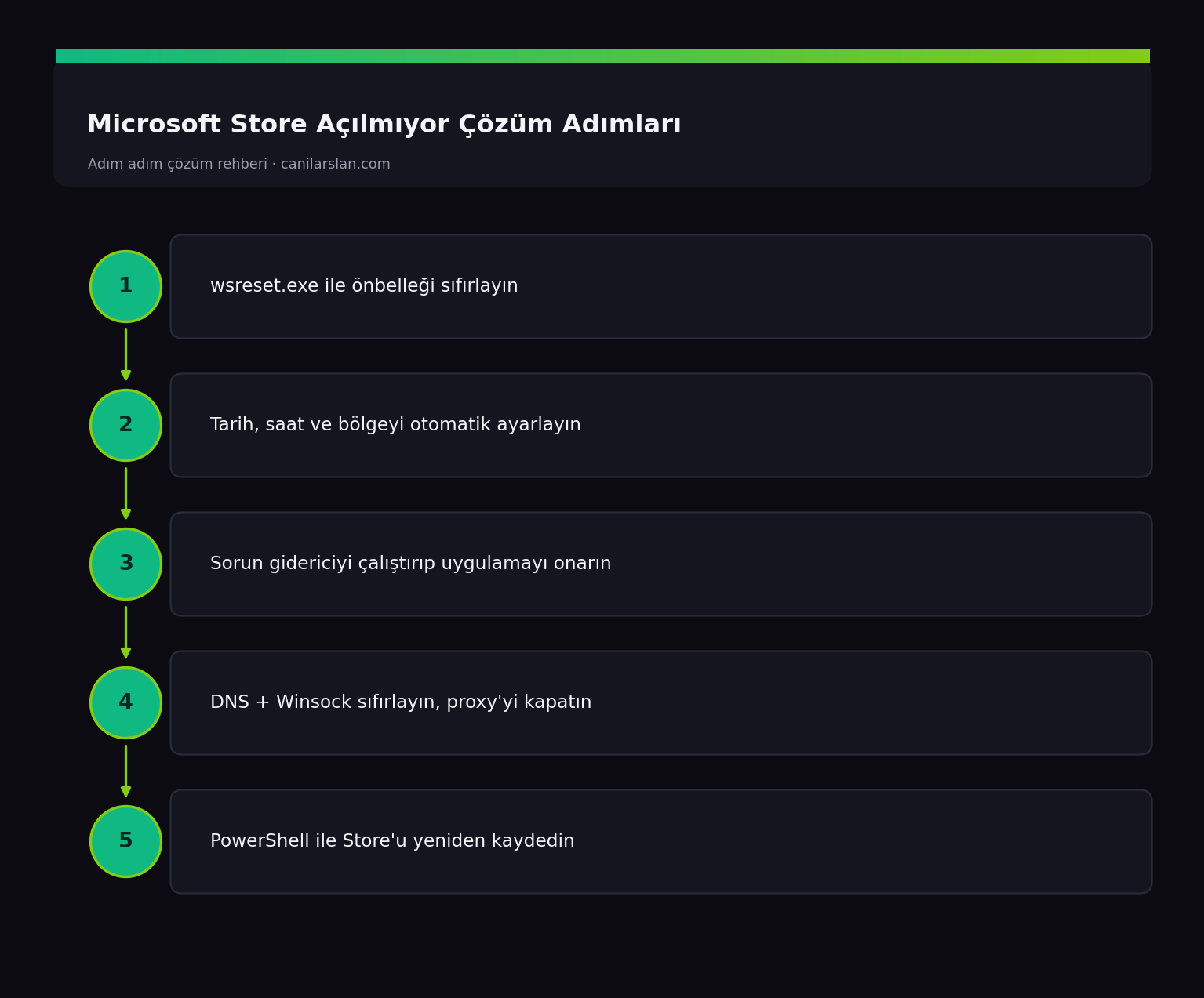
Windows 11 Microsoft Store 0x80131500 hatası
Microsoft Store Açılmıyor Çözüm Adımları

Store Neden Açılmaz?

Microsoft Store, çalışmak için doğru tarih/saat, sağlıklı bir internet bağlantısı ve bozulmamış uygulama önbelleği gerektirir. En sık nedenler: bozuk Store önbelleği, yanlış sistem saati/bölgesi, bağlantıyı engelleyen proxy/DNS, hasarlı Store uygulaması ve bozuk sistem dosyalarıdır.

Çözüm 1: Store Önbelleğini Sıfırlayın (wsreset)

En etkili ilk adım önbelleği temizlemektir. Win + R açıp şunu çalıştırın:

wsreset.exe

Boş bir komut penceresi birkaç saniye açık kalır, ardından Store kendiliğinden açılır. Bu, bozuk önbellek kaynaklı çoğu sorunu çözer.

Çözüm 2: Tarih, Saat ve Bölgeyi Kontrol Edin

Yanlış sistem saati, Store'un sunucularla güvenli bağlantı kurmasını engeller. Ayarlar > Saat ve dil > Tarih ve saat'e gidip Saati otomatik ayarla ve Saat dilimini otomatik ayarla seçeneklerini açın, Şimdi eşitle deyin.

Çözüm 3: Store Sorun Gidericisi ve Uygulama Onarımı

Ayarlar > Sistem > Sorun Giderme > Diğer sorun gidericiler > Windows Mağazası Uygulamaları sorun gidericisini çalıştırın. Ardından Ayarlar > Uygulamalar > Yüklü uygulamalar'dan Microsoft Store'u bulun, Gelişmiş seçenekler'e girip önce Onar, çözmezse Sıfırla deyin. Onar verilerinizi korur, Sıfırla uygulamayı baştan kurar.

Çözüm 4: Ağ ve DNS Ayarlarını Sıfırlayın

Bağlantı kaynaklı sorunlar için yönetici Terminal'de ağı sıfırlayın:

ipconfig /flushdns
netsh winsock reset

Komutlardan sonra bilgisayarı yeniden başlatın. Proxy kullanıyorsanız Ayarlar > Ağ ve İnternet > Proxy'den kapatıp deneyin.

Çözüm 5: Store'u PowerShell ile Yeniden Kaydedin

Store hâlâ açılmıyorsa uygulamayı yeniden kaydedin. PowerShell'i yönetici olarak açıp şu komutu çalıştırın:

Get-AppxPackage -allusers Microsoft.WindowsStore | Foreach {Add-AppxPackage -DisableDevelopmentMode -Register "$($_.InstallLocation)\AppXManifest.xml"}

İşlem bitince yeniden başlatın. Bu komut Store uygulamasını sistemde yeniden kaydederek bozuk kurulumları onarır.

Sıkça Sorulan Sorular (SSS)

wsreset ne yapar, veri siler mi?

wsreset yalnızca Store'un önbelleğini temizler; yüklü uygulamalarınızı veya hesabınızı silmez. Bozuk önbellek kaynaklı açılış sorunlarının en hızlı çözümüdür.

0x80131500 hatası tam olarak neyi gösterir?

Genellikle Store'un sunucuya bağlanamadığını gösterir; nedeni çoğunlukla yanlış tarih/saat, DNS veya proxy sorunudur. Bunları düzeltmek hatayı giderir.

Hiçbir yöntem işe yaramazsa?

Yeni bir yerel kullanıcı hesabı oluşturup Store'u orada deneyin; sorun profil bozulmasıysa bu çözer. Son çare olarak "Bu bilgisayarı sıfırla" ile sistemi yenileyebilirsiniz.

Sonuç

Microsoft Store açılmıyorsa neden genelde bozuk önbellek, yanlış saat veya ağ ayarıdır. wsreset, tarih/saat düzeltmesi ve uygulama onarımı çoğu vakayı çözer. İnatçı durumlarda Store'u PowerShell ile yeniden kaydetmek kesin sonuç verir.

İlgili Yazılar