
When you buy a web hosting plan, the first management screen you'll likely see is cPanel. cPanel is the most widely used control panel that lets you manage your server through a visual interface, with no command line required. In this guide you'll learn how to log in to cPanel, what the most-used tools do, and how to perform everyday tasks (uploading files, creating a database, adding email, installing SSL) step by step.
What Is cPanel?
cPanel is a graphical control panel used to manage your hosted website. You manage your files, databases, email accounts, domains, security and backups from one place, all by clicking. Most shared hosting providers offer cPanel.
How to Log In to cPanel
You can reach cPanel in three ways:
- Via the cPanel / Login button in your hosting provider's client area.
- By typing
yoursite.com/cpanelin your browser. - Directly over the secure port:
https://yoursite.com:2083.
Your username and password are in your hosting welcome email. After logging in, you'll see the main screen where tools are grouped into sections.
The cPanel Home Screen: Know the Sections
cPanel tools are organized into logical groups. The numbers below match the regions in the image:
- Search bar: type a tool's name to find it fast (e.g. “File Manager”).
- Files: File Manager, Disk Usage, Backup, FTP Accounts.
- Databases: MySQL Databases, phpMyAdmin.
Other important sections: Domains (domains, subdomains, redirects), Email (email accounts), Metrics (visitor and error stats), Security (SSL/TLS, IP blocker) and Software (PHP version, WordPress Toolkit).
The Most Common Tasks in cPanel
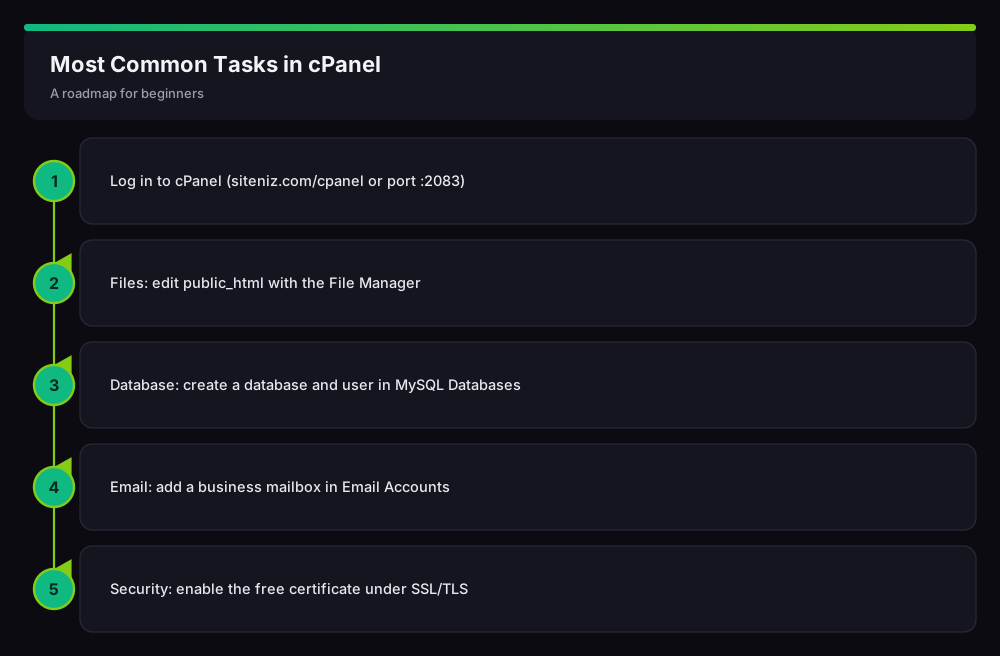
1) File Management — File Manager
The Files > File Manager tool lets you manage your server files in the browser, so you can upload and edit files without FTP for small jobs. Your site files live in the public_html folder.

- Folder tree: open public_html on the left; your site files are here.
- File list: double-click to edit files; open config files like
wp-config.phphere. - Toolbar: actions such as Upload, New Folder and Delete.
2) Creating a Database — MySQL Databases
Systems like WordPress require a database. In Databases > MySQL Databases you create a database, add a user, and grant the user all privileges on that database. Don't skip these three steps; otherwise installs throw a “database connection error”.
3) Creating Email — Email Accounts
In Email > Email Accounts you can create business addresses like info@yoursite.com. Access the mailbox via Webmail or clients like Outlook and your phone.
4) Installing Free SSL — SSL/TLS
Your site needs an SSL certificate to load securely over https://. Most cPanels install a free certificate in one click via Security > SSL/TLS Status or Let's Encrypt, and renew it automatically.
5) Backups — Backup
Use Files > Backup to download a full backup of your site and database. Taking a backup before any big change (theme/plugin update, WordPress upgrade) is a good habit.
Security Tips
- Keep your cPanel password strong and enable two-step verification if available.
- Delete old FTP and email accounts you no longer use.
- Keep your PHP version up to date (Software > Select PHP Version).
- Back up regularly; many providers offer automatic backups too.
Once you know cPanel, the next step is usually building a site. Our WordPress installation guide shows how to use these cPanel tools together.
Frequently Asked Questions (FAQ)
How do I log in to cPanel?
Go to yoursite.com/cpanel or use the port https://yoursite.com:2083. Your username and password are in your hosting welcome email.
What's the difference between cPanel and FTP?
cPanel is a control panel that manages the whole server; FTP is a protocol used only for transferring files. cPanel's File Manager provides file management similar to FTP.
Does cPanel include free SSL?
Yes, most cPanels offer a free certificate via Let's Encrypt or AutoSSL. It installs in one click from the SSL/TLS section and renews automatically.
How do I create a database for WordPress?
In MySQL Databases, create a database, add a user, and connect the user to the database with all privileges.
Conclusion
cPanel is the most practical way to manage your hosting without the command line. With File Manager for files, MySQL Databases for databases, Email Accounts for mail and SSL/TLS for security, you manage everything from one panel. Knowing these tools makes building and maintaining a site far easier.
Related Guides
- What Is FTP and How to Use It? (Detailed FileZilla Guide)
- How to Install WordPress: A Detailed Step-by-Step Guide
Need help with your website, hosting or SEO? Get in touch with me.