
If you run a website, sooner or later you'll need to upload files directly to the server: a theme file, a plugin, an image, or a configuration file you edited by hand. The most standard way to do this is FTP. In this guide you'll learn what FTP is, how to use it step by step with the most popular free client FileZilla, how to connect securely (FTPS), how file permissions work, and how to fix the most common errors.
What Is FTP and What Is It For?
FTP (File Transfer Protocol) is a protocol for sending and receiving files between your computer and your web server. Instead of visiting your site in a browser, FTP connects you to the server's file system, where you upload, download, delete or rename files just like the folders on your own computer.
Your site's files usually live in the public_html folder on the server (sometimes www or htdocs). FTP is how you reach that folder.
What You Need to Connect via FTP
You need four pieces of information to connect. You'll find them in your hosting welcome email or under cPanel > FTP Accounts:
- Host: e.g.
ftp.yoursite.comor your server's IP address. - Username: the name of the FTP account you created.
- Password: the password for that FTP account.
- Port:
21for plain FTP, usually22for secure SFTP.

Downloading and Installing FileZilla
FileZilla is a free, open-source FTP client for Windows, macOS and Linux. Download the FileZilla Client (not Server) from the official site at filezilla-project.org. During setup, read any bundled-software offers carefully and uncheck anything you don't need.
Get to Know the FileZilla Interface
FileZilla can look busy at first, but it's just a few key areas. The numbers below match the regions in the image:

- Quickconnect bar: enter host, username, password and port to connect instantly.
- Local site (left pane): the files on your own computer.
- Remote site (right pane): the files on the server — where your site lives.
- Transfer queue (bottom): the status of uploads/downloads and any error logs.
Step by Step: Connect and Upload Files via FTP
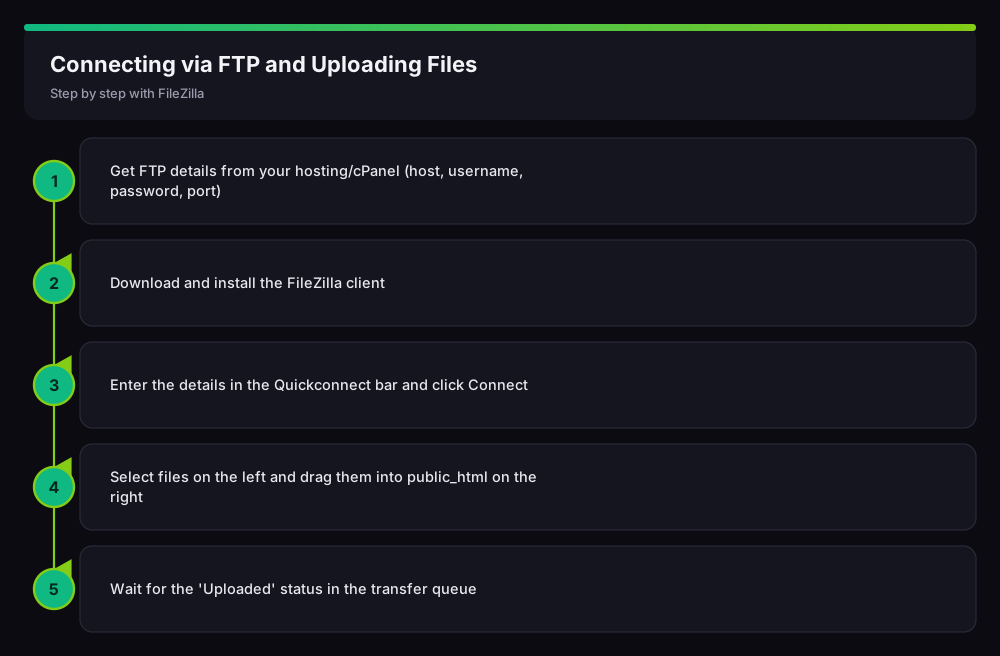
This flow is the shortest path from zero to your first upload:
1) Connect
Enter host, username, password and port (21) in the Quickconnect bar and click Quickconnect. On success you'll see the server's folders in the right pane.
2) Open the right folder
Double-click the public_html folder in the right pane. Your site files must go here. Uploading to the wrong folder (such as the root) is one of the most common reasons a site won't load.
3) Drag and drop your files
Select a file in the left pane and drag it into public_html on the right. You can move several files or folders at once. To download, drag the other way, from right to left.
4) Verify the transfer
In the transfer queue at the bottom, confirm each file shows Uploaded. If anything appears under Failed transfers, right-click and re-queue those files.
Security: Use FTPS/SFTP Instead of Plain FTP
Plain FTP sends your username and password unencrypted, which is risky on untrusted networks. When possible, use SFTP (port 22) or FTPS (explicit TLS over port 21). In FileZilla's Site Manager you can choose these secure options in the Protocol/Encryption field.
What You Should Know About File Permissions (CHMOD)
Every file and folder on the server has a permission value. The general rule is folders 755 and files 644. Right-click a file and choose File permissions to change it. Wrong permissions can cause errors like “500 Internal Server Error” or “Forbidden”, so avoid broad permissions such as 777 unless truly required.
Common FTP Errors and Fixes
- “Connection timed out”: wrong host or port, or a firewall/antivirus blocking FileZilla. Check the port (21/22) and host address.
- “530 Login authentication failed”: wrong username or password. Reset the FTP account password in cPanel.
- “Could not connect to server”: possibly a passive-mode issue. Try Passive under Settings > FTP > Transfer Mode.
- Files upload but don't show on the site: you most likely uploaded to the wrong folder (outside public_html).
For more advanced server and file management, see our cPanel usage guide. Since you'll use FTP often when installing WordPress, our WordPress installation guide is helpful too.
Frequently Asked Questions (FAQ)
What's the difference between FTP and SFTP?
FTP transfers files unencrypted; SFTP transfers them encrypted over SSH (port 22). Prefer SFTP or FTPS for security when available.
Is FileZilla free?
Yes, the FileZilla Client is completely free and open source. Just make sure you download it from the official site (filezilla-project.org).
I uploaded my files but my site won't load — why?
The most common cause is uploading to the wrong folder; files must be inside public_html. Also check permissions (folders 755, files 644) and that an index file exists.
Where do I find my FTP details?
In your hosting welcome email or under cPanel > FTP Accounts, where you can also create a new FTP account.
Conclusion
FTP is the most fundamental and powerful way to manage your website's files. With FileZilla, entering your connection details and dragging files into public_html takes only minutes. Remember to use FTPS/SFTP for security, set permissions correctly, and always upload to the right folder.
Related Guides
- What Is cPanel and How to Use It? (Beginner's Guide)
- How to Install WordPress: A Detailed Step-by-Step Guide
Need help with your website, hosting or SEO? Get in touch with me.