WordPress is the world's most popular content management system, and installing it is far easier than it looks. In this guide I'll show you how to install WordPress on a hosting account manually, from scratch, step by step: uploading the files, creating a database in cPanel, configuring it, and the famous “5-minute install”. If you hit an error along the way, use the WordPress installation errors guide linked at the end.
Before You Start: What You Need
- A hosting account with cPanel access.
- A domain name pointed at your hosting.
- FTP access (or the cPanel File Manager).
- The latest WordPress package downloaded from wordpress.org.
The Overall Flow
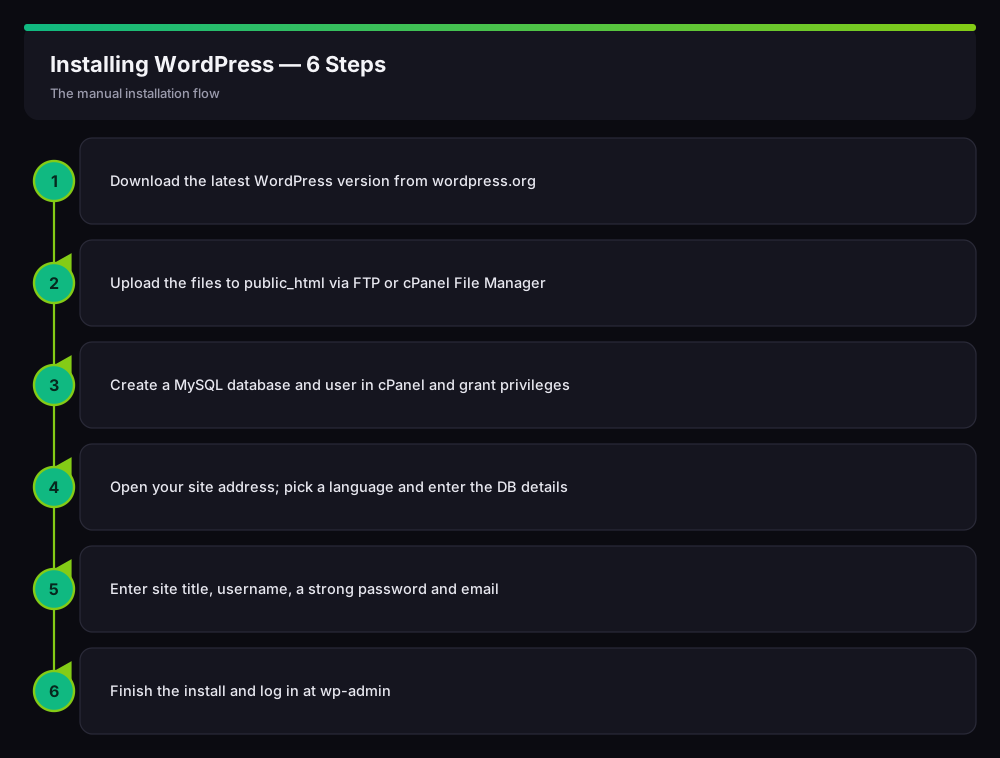
A manual WordPress install has six steps. Review the flow first, then we'll do each step:
Step 1: Download WordPress
Download the latest WordPress version as a .zip from wordpress.org/download. Always installing the newest version matters for security and compatibility.
Step 2: Upload the Files to public_html
You can upload the zip in two ways:
- With cPanel File Manager: open
public_html, upload the zip and Extract it. Make sure the WordPress files sit directly inside public_html (no extrawordpresssubfolder left over). - With FTP: unzip on your computer and upload the contents to public_html with FileZilla.
If your site address will be exactly yoursite.com, the files must be inside public_html. If they stay in public_html/wordpress/, your site will open at yoursite.com/wordpress.
Step 3: Create a Database in cPanel
WordPress stores its content in a MySQL database. In cPanel, go to MySQL Databases and do three things in order:
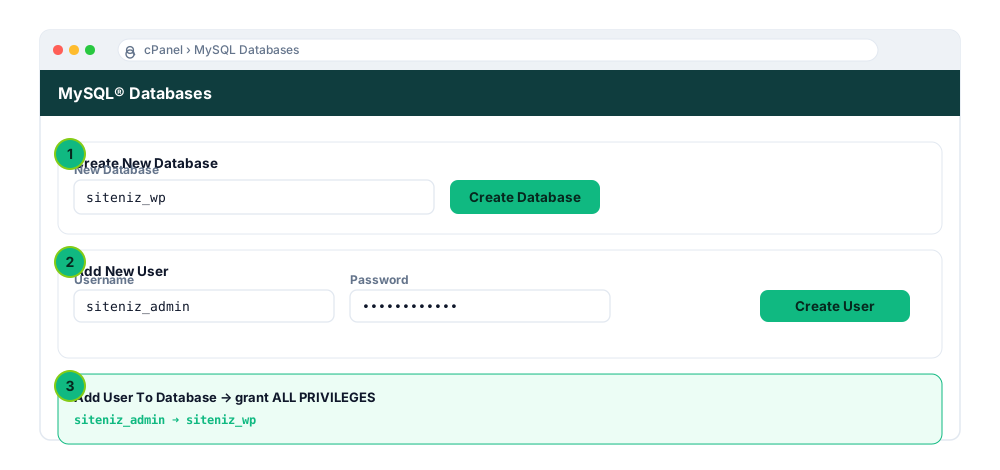
- Create the database: e.g.
siteniz_wp. Note the full name (a prefix is usually added). - Add a user: set a username and strong password; note both.
- Add the user to the database: grant ALL PRIVILEGES.
Step 4: Pick a Language and Enter Database Details
Open your site address in the browser. The WordPress setup wizard starts; first choose a language, then it asks for the database connection details. Enter the values you just created:
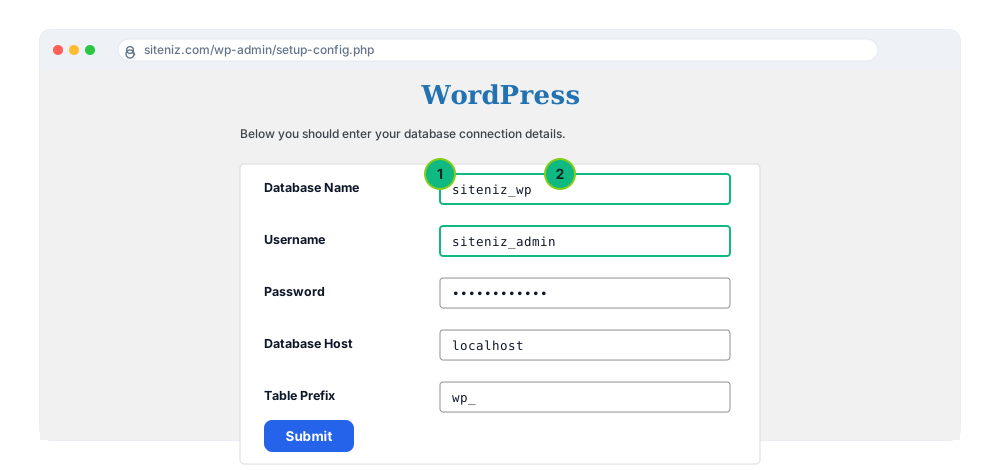
- Database Name: the full name of the database you created (e.g.
siteniz_wp). - Username / Password: the database user and password.
- Database Host: usually
localhoston shared hosting. - Table Prefix: for security, you can use a custom prefix (e.g.
wpx_) instead of the defaultwp_.
If these are correct, WordPress creates wp-config.php automatically. If there's a permission issue, you may be asked to save the shown content as wp-config.php manually and upload it to public_html.
Step 5: The Famous 5-Minute Install
If the database connection succeeds, the final screen appears, where you enter your site's basic details:
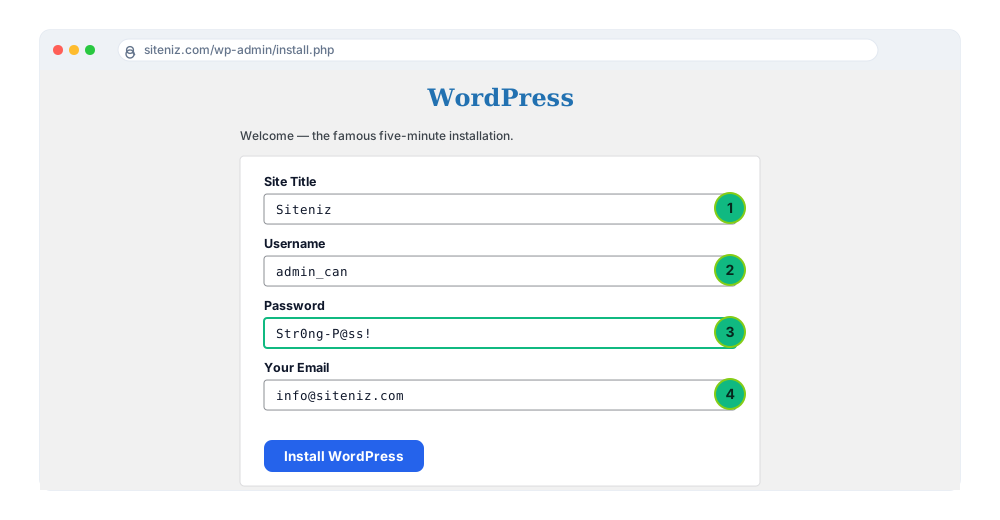
- Site Title: your site's name (changeable later).
- Username: avoid predictable names like
admin. - Password: choose a strong, unique password.
- Email: a valid address for resets and notifications.
Click Install WordPress. The install completes in seconds.
Step 6: Log In to the Admin Panel
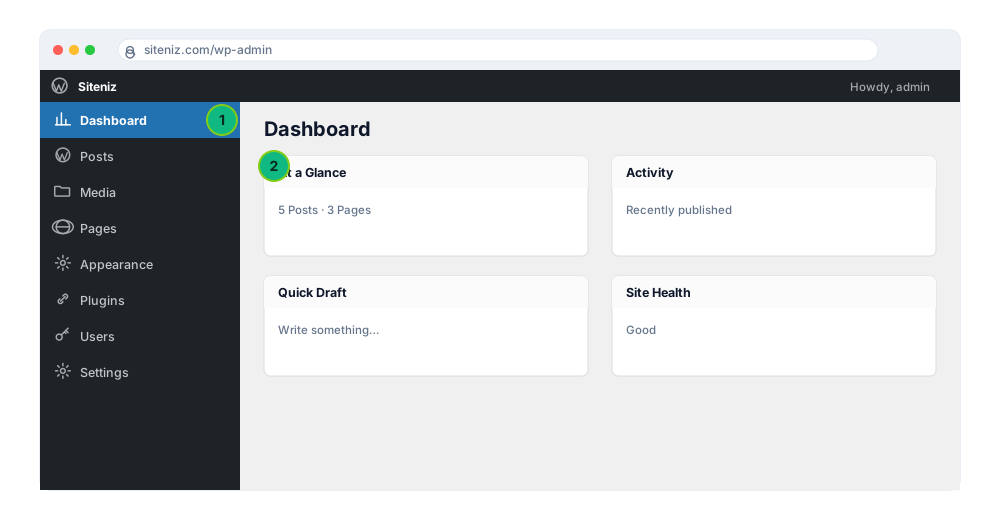
You can now log in at yoursite.com/wp-admin with your username and password. The WordPress dashboard appears:
First Things to Do After Installing
- Permalinks: under Settings > Permalinks choose the “Post name” structure (SEO-friendly).
- SSL/HTTPS: install free SSL from cPanel and switch the site address to https.
- Remove sample content: delete the default post, page and comment.
- Core plugins: add caching, security and an SEO plugin.
- Backups: set up an automatic backup solution.
If you ran into a “database connection error”, a white screen or a 404 during install, see our WordPress installation errors and fixes for detailed solutions.
Frequently Asked Questions (FAQ)
How long does a WordPress install take?
Once the files are uploaded and the database is ready, the actual install really does take a few minutes — hence the “5-minute install”.
What's the difference between one-click (Softaculous) and manual install?
Tools like Softaculous automate all steps; they're fast, but knowing the manual install helps you learn what's happening and troubleshoot problems.
What do I enter as the database host?
On most shared hosting, 'localhost' is correct. Some providers use a different host name; if unsure, ask your hosting provider.
What is wp-config.php?
It's the configuration file where WordPress stores database details and core settings. It's created automatically during install and lives inside public_html.
Conclusion
Installing WordPress is just six steps: download, upload, create a database, enter the connection details, finish the 5-minute install and log in. Follow the steps in order and the install completes smoothly. If you get stuck, our installation errors guide has you covered.
Related Guides
- The Most Common WordPress Installation Errors and Fixes
- What Is cPanel and How to Use It? (Beginner's Guide)
- What Is FTP and How to Use It? (Detailed FileZilla Guide)
Need help with your website, hosting or SEO? Get in touch with me.