Windows 11

"This PC Can't Run Windows 11" Error (TPM 2.0 / Secure Boot) Fix

If you run into the "This PC doesn't currently meet Windows 11 system requirements" warning when trying to upgrade or move to Windows 11, the problem is most often a disabled TPM 2.0 or Secure Boot setting. The good news: most modern computers already have these features, you just need to turn them on in the BIOS.
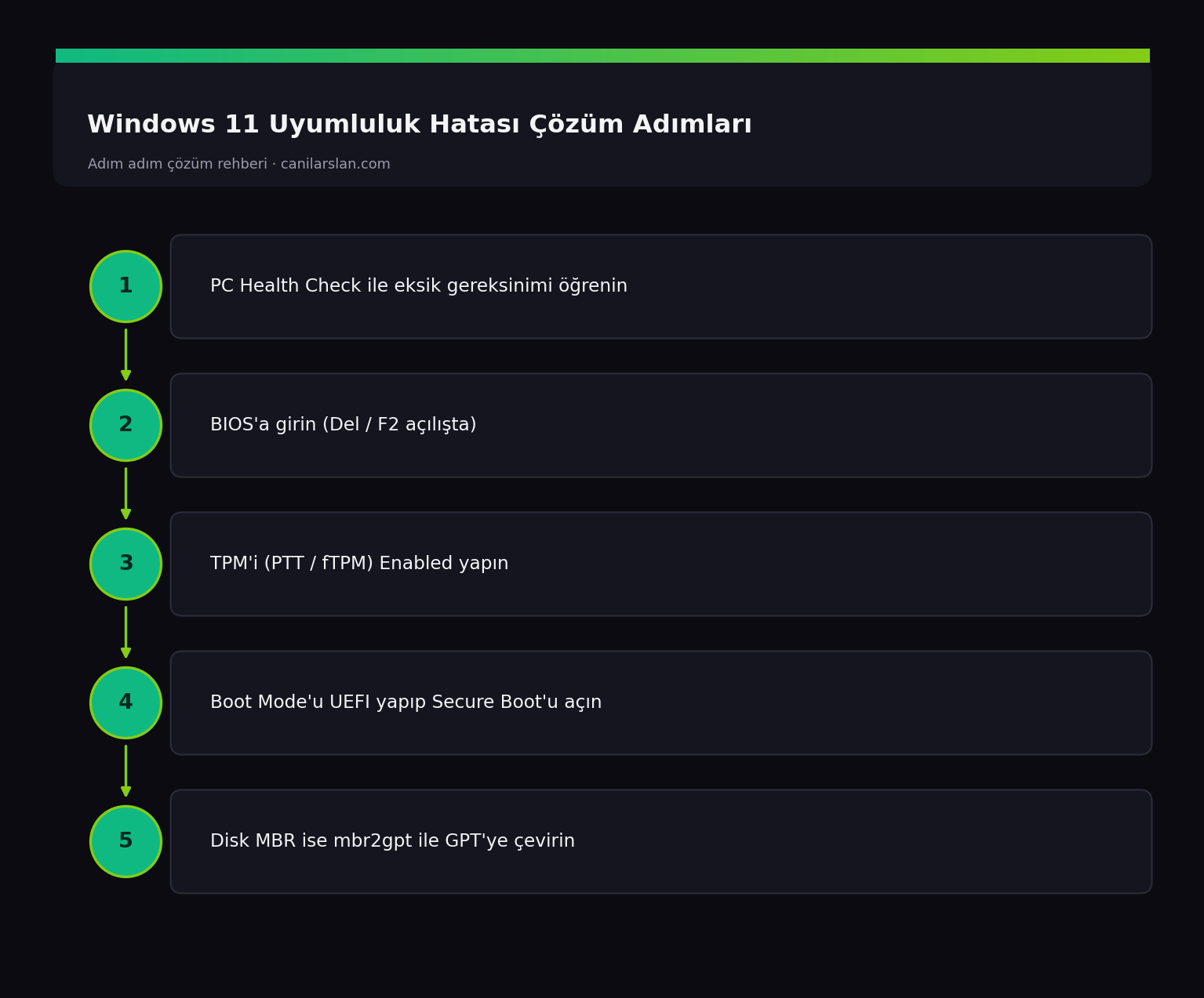
This PC can't run Windows 11 compatibility error
Windows 11 Compatibility Error Fix Steps

First, Find Out What's Missing

Download and run Microsoft's PC Health Check app. When you click "Check now", the app tells you exactly which requirement isn't being met: TPM 2.0, Secure Boot, processor compatibility or RAM. In most cases, the TPM and Secure Boot that appear to be missing are actually present but turned off in the BIOS.

Fix 1: Enable TPM 2.0 in the BIOS

Restart the computer and enter the BIOS/UEFI with the Del / F2 / F10 key during startup. Find the TPM setting under the Security or Advanced menu. It is named differently depending on the manufacturer: on Intel systems it's PTT (Platform Trust Technology), on AMD systems it's fTPM. Set this option to Enabled, then save and exit.

To check the TPM status from within Windows, press Win + R > type tpm.msc. If you see "The TPM is ready for use" and version 2.0, you're all set.

Fix 2: Enable Secure Boot

Again in the BIOS, set the Secure Boot option to Enabled under the Boot or Security menu. If the Secure Boot option appears greyed out/disabled, you may first need to switch Boot Mode to UEFI (turning off CSM/Legacy). If your disk is MBR, you'll need to convert it to GPT to switch to UEFI (using the mbr2gpt tool, without data loss).

Fix 3: Convert the Disk to GPT if It's MBR

For UEFI and Secure Boot, the disk partition style must be GPT. From your current Windows, in an administrator Terminal, first check eligibility and then convert:

mbr2gpt /validate /allowFullOS
mbr2gpt /convert /allowFullOS

After converting, set Boot Mode to UEFI in the BIOS and enable Secure Boot. It's recommended to back up your data before this operation.

Fix 4: If the Processor Really Is Incompatible

If PC Health Check says your processor isn't supported, the hardware really is old. Microsoft does not officially recommend installing on unsupported hardware; these devices fall outside the update guarantee. Still, for those who want to try it on an older device, there are ways to bypass the requirements with the registry or tools like Rufus; however, these methods carry update and stability risks and are not recommended on critical devices.

Frequently Asked Questions (FAQ)

How do I know if my computer has TPM 2.0?

Press Win + R > type tpm.msc. If the window that opens says "The TPM is ready for use" and Specification Version 2.0, you have it. If it doesn't appear, you need to enable PTT/fTPM in the BIOS.

The Secure Boot option is greyed out and I can't change it, why?

It's usually because the system is in Legacy/CSM mode. You need to switch Boot Mode to UEFI and, if necessary, convert the disk to GPT; after that, Secure Boot becomes available to enable.

Is it safe to install Windows 11 on an unsupported processor?

It can be installed, but Microsoft doesn't recommend it. These devices fall outside the update guarantee and may run into trouble with major version updates. They shouldn't be the preferred choice for critical devices.

Conclusion

The "This PC can't run Windows 11" error is most often caused by TPM 2.0 and Secure Boot being turned off in the BIOS. Enabling these two settings and, if needed, converting the disk to GPT solves the problem. If the processor really is incompatible, a hardware upgrade comes into play.

Related Articles

Windows 11

"Dieser PC kann Windows 11 nicht ausführen" Fehler (TPM 2.0 / Secure Boot) beheben

Wenn Sie beim Versuch, auf Windows 11 zu aktualisieren oder umzusteigen, auf die Warnung "Dieser PC erfüllt derzeit nicht die Systemanforderungen für Windows 11" stoßen, liegt das Problem meist an einer deaktivierten Einstellung für TPM 2.0 oder Secure Boot. Die gute Nachricht: Die meisten modernen Computer verfügen bereits über diese Funktionen, Sie müssen sie nur im BIOS aktivieren.

Dieser PC kann Windows 11 nicht ausführen Kompatibilitätsfehler
Lösungsschritte für den Windows-11-Kompatibilitätsfehler

Finden Sie zuerst heraus, was fehlt

Laden Sie die App PC Health Check von Microsoft herunter und führen Sie sie aus. Wenn Sie auf "Jetzt überprüfen" klicken, teilt Ihnen die App genau mit, welche Anforderung nicht erfüllt wird: TPM 2.0, Secure Boot, Prozessorkompatibilität oder RAM. In den meisten Fällen sind das scheinbar fehlende TPM und Secure Boot tatsächlich vorhanden, aber im BIOS deaktiviert.

Lösung 1: TPM 2.0 im BIOS aktivieren

Starten Sie den Computer neu und rufen Sie während des Starts mit der Taste Entf / F2 / F10 das BIOS/UEFI auf. Suchen Sie die TPM-Einstellung im Menü Security oder Advanced. Sie wird je nach Hersteller unterschiedlich benannt: Auf Intel-Systemen heißt sie PTT (Platform Trust Technology), auf AMD-Systemen fTPM. Stellen Sie diese Option auf Enabled, speichern Sie anschließend und verlassen Sie das BIOS.

Um den TPM-Status innerhalb von Windows zu überprüfen, drücken Sie Win + R > geben Sie tpm.msc ein. Wenn "Das TPM ist einsatzbereit" und Version 2.0 angezeigt wird, ist alles in Ordnung.

Lösung 2: Secure Boot aktivieren

Stellen Sie ebenfalls im BIOS die Option Secure Boot im Menü Boot oder Security auf Enabled. Wenn die Option Secure Boot ausgegraut/deaktiviert erscheint, müssen Sie möglicherweise zuerst den Boot Mode auf UEFI umstellen (CSM/Legacy deaktivieren). Wenn Ihre Festplatte MBR ist, müssen Sie sie für den Wechsel zu UEFI in GPT konvertieren (mit dem Tool mbr2gpt, ohne Datenverlust).

Lösung 3: Festplatte in GPT konvertieren, falls sie MBR ist

Für UEFI und Secure Boot muss der Partitionsstil der Festplatte GPT sein. Überprüfen Sie aus Ihrem aktuellen Windows heraus in einem Administrator-Terminal zunächst die Eignung und konvertieren Sie dann:

mbr2gpt /validate /allowFullOS
mbr2gpt /convert /allowFullOS

Stellen Sie nach der Konvertierung im BIOS den Boot Mode auf UEFI und aktivieren Sie Secure Boot. Es wird empfohlen, vor diesem Vorgang Ihre Daten zu sichern.

Lösung 4: Wenn der Prozessor wirklich inkompatibel ist

Wenn PC Health Check meldet, dass Ihr Prozessor nicht unterstützt wird, ist die Hardware tatsächlich alt. Microsoft empfiehlt offiziell nicht, auf nicht unterstützter Hardware zu installieren; diese Geräte fallen außerhalb der Update-Garantie. Dennoch gibt es für diejenigen, die es auf einem älteren Gerät versuchen möchten, Möglichkeiten, die Anforderungen mit der Registry oder Tools wie Rufus zu umgehen; diese Methoden bergen jedoch Update- und Stabilitätsrisiken und werden für kritische Geräte nicht empfohlen.

Häufig gestellte Fragen (FAQ)

Wie erkenne ich, ob mein Computer TPM 2.0 hat?

Drücken Sie Win + R > geben Sie tpm.msc ein. Wenn im sich öffnenden Fenster "Das TPM ist einsatzbereit" und Spezifikationsversion 2.0 steht, haben Sie es. Wird es nicht angezeigt, müssen Sie PTT/fTPM im BIOS aktivieren.

Die Option Secure Boot ist ausgegraut und ich kann sie nicht ändern, warum?

Das liegt in der Regel daran, dass sich das System im Legacy/CSM-Modus befindet. Sie müssen den Boot Mode auf UEFI umstellen und bei Bedarf die Festplatte in GPT konvertieren; danach lässt sich Secure Boot aktivieren.

Ist es sicher, Windows 11 auf einem nicht unterstützten Prozessor zu installieren?

Es lässt sich installieren, aber Microsoft empfiehlt es nicht. Diese Geräte fallen außerhalb der Update-Garantie und können bei größeren Versionsupdates auf Probleme stoßen. Für kritische Geräte sollten sie nicht die bevorzugte Wahl sein.

Fazit

Der Fehler "Dieser PC kann Windows 11 nicht ausführen" wird meist dadurch verursacht, dass TPM 2.0 und Secure Boot im BIOS deaktiviert sind. Das Aktivieren dieser beiden Einstellungen und bei Bedarf das Konvertieren der Festplatte in GPT löst das Problem. Ist der Prozessor wirklich inkompatibel, kommt ein Hardware-Upgrade ins Spiel.

Verwandte Artikel

Windows 11

Erreur "Ce PC ne peut pas exécuter Windows 11" (TPM 2.0 / Secure Boot) : la solution

Si vous rencontrez l'avertissement « Ce PC ne répond pas actuellement à la configuration requise pour Windows 11 » lorsque vous essayez de mettre à niveau ou de passer à Windows 11, le problème vient le plus souvent d'un paramètre TPM 2.0 ou Secure Boot désactivé. La bonne nouvelle : la plupart des ordinateurs modernes disposent déjà de ces fonctionnalités, il vous suffit de les activer dans le BIOS.

Erreur de compatibilité Ce PC ne peut pas exécuter Windows 11
Étapes de résolution de l'erreur de compatibilité Windows 11

D'abord, déterminez ce qui manque

Téléchargez et exécutez l'application PC Health Check de Microsoft. Lorsque vous cliquez sur « Vérifier maintenant », l'application vous indique précisément quelle exigence n'est pas satisfaite : TPM 2.0, Secure Boot, compatibilité du processeur ou RAM. Dans la plupart des cas, le TPM et le Secure Boot qui semblent absents sont en réalité présents, mais désactivés dans le BIOS.

Solution 1 : activer le TPM 2.0 dans le BIOS

Redémarrez l'ordinateur et accédez au BIOS/UEFI avec la touche Suppr / F2 / F10 au démarrage. Trouvez le paramètre TPM dans le menu Security ou Advanced. Il porte un nom différent selon le fabricant : sur les systèmes Intel, c'est PTT (Platform Trust Technology), sur les systèmes AMD, c'est fTPM. Réglez cette option sur Enabled, puis enregistrez et quittez.

Pour vérifier l'état du TPM depuis Windows, appuyez sur Win + R > tapez tpm.msc. Si vous voyez « Le module de plateforme sécurisée est prêt à être utilisé » et la version 2.0, tout est en ordre.

Solution 2 : activer le Secure Boot

Toujours dans le BIOS, réglez l'option Secure Boot sur Enabled dans le menu Boot ou Security. Si l'option Secure Boot apparaît grisée/désactivée, vous devrez peut-être d'abord basculer le Boot Mode sur UEFI (en désactivant CSM/Legacy). Si votre disque est en MBR, vous devrez le convertir en GPT pour passer en UEFI (à l'aide de l'outil mbr2gpt, sans perte de données).

Solution 3 : convertir le disque en GPT s'il est en MBR

Pour l'UEFI et le Secure Boot, le style de partition du disque doit être GPT. Depuis votre Windows actuel, dans un Terminal administrateur, vérifiez d'abord l'éligibilité puis convertissez :

mbr2gpt /validate /allowFullOS
mbr2gpt /convert /allowFullOS

Après la conversion, réglez le Boot Mode sur UEFI dans le BIOS et activez le Secure Boot. Il est recommandé de sauvegarder vos données avant cette opération.

Solution 4 : si le processeur est réellement incompatible

Si PC Health Check indique que votre processeur n'est pas pris en charge, le matériel est réellement ancien. Microsoft ne recommande pas officiellement l'installation sur du matériel non pris en charge ; ces appareils sortent du cadre de la garantie de mises à jour. Néanmoins, pour ceux qui souhaitent l'essayer sur un appareil plus ancien, il existe des moyens de contourner les exigences avec le registre ou des outils comme Rufus ; cependant, ces méthodes comportent des risques de mises à jour et de stabilité et ne sont pas recommandées sur les appareils critiques.

Foire aux questions (FAQ)

Comment savoir si mon ordinateur dispose du TPM 2.0 ?

Appuyez sur Win + R > tapez tpm.msc. Si la fenêtre qui s'ouvre indique « Le module de plateforme sécurisée est prêt à être utilisé » et la version de spécification 2.0, vous en disposez. S'il n'apparaît pas, vous devez activer PTT/fTPM dans le BIOS.

L'option Secure Boot est grisée et je ne peux pas la modifier, pourquoi ?

C'est généralement parce que le système est en mode Legacy/CSM. Vous devez basculer le Boot Mode sur UEFI et, si nécessaire, convertir le disque en GPT ; après cela, le Secure Boot devient activable.

Est-il sûr d'installer Windows 11 sur un processeur non pris en charge ?

L'installation est possible, mais Microsoft ne le recommande pas. Ces appareils sortent du cadre de la garantie de mises à jour et peuvent rencontrer des problèmes lors des mises à jour majeures de version. Ils ne devraient pas être le choix privilégié pour les appareils critiques.

Conclusion

L'erreur « Ce PC ne peut pas exécuter Windows 11 » est le plus souvent causée par la désactivation du TPM 2.0 et du Secure Boot dans le BIOS. Activer ces deux paramètres et, si nécessaire, convertir le disque en GPT résout le problème. Si le processeur est réellement incompatible, une mise à niveau matérielle entre en jeu.

Articles connexes

Windows 11

Errore "Questo PC non può eseguire Windows 11" (TPM 2.0 / Secure Boot): la soluzione

Se quando provate ad aggiornare o a passare a Windows 11 incontrate l'avviso "Questo PC attualmente non soddisfa i requisiti di sistema per Windows 11", il problema dipende quasi sempre da un'impostazione TPM 2.0 o Secure Boot disattivata. La buona notizia: la maggior parte dei computer moderni dispone già di queste funzionalità, è sufficiente attivarle nel BIOS.

Errore di compatibilità Questo PC non può eseguire Windows 11
Passaggi per risolvere l'errore di compatibilità di Windows 11

Per prima cosa, scoprite cosa manca

Scaricate ed eseguite l'app PC Health Check di Microsoft. Quando fate clic su "Verifica ora", l'app vi indica esattamente quale requisito non è soddisfatto: TPM 2.0, Secure Boot, compatibilità del processore o RAM. Nella maggior parte dei casi, il TPM e il Secure Boot che sembrano mancanti sono in realtà presenti, ma disattivati nel BIOS.

Soluzione 1: attivare il TPM 2.0 nel BIOS

Riavviate il computer ed entrate nel BIOS/UEFI con il tasto Canc / F2 / F10 all'avvio. Individuate l'impostazione TPM nel menu Security o Advanced. Ha un nome diverso a seconda del produttore: sui sistemi Intel si chiama PTT (Platform Trust Technology), sui sistemi AMD fTPM. Impostate questa opzione su Enabled, quindi salvate ed uscite.

Per verificare lo stato del TPM all'interno di Windows, premete Win + R > digitate tpm.msc. Se vedete "Il TPM è pronto per l'uso" e la versione 2.0, è tutto a posto.

Soluzione 2: attivare il Secure Boot

Sempre nel BIOS, impostate l'opzione Secure Boot su Enabled nel menu Boot o Security. Se l'opzione Secure Boot appare in grigio/disattivata, potrebbe essere necessario prima impostare il Boot Mode su UEFI (disattivando CSM/Legacy). Se il vostro disco è MBR, per passare a UEFI dovrete convertirlo in GPT (con lo strumento mbr2gpt, senza perdita di dati).

Soluzione 3: convertire il disco in GPT se è MBR

Per UEFI e Secure Boot lo stile di partizione del disco deve essere GPT. Dal vostro Windows attuale, in un Terminale amministratore, prima verificate l'idoneità e poi convertite:

mbr2gpt /validate /allowFullOS
mbr2gpt /convert /allowFullOS

Dopo la conversione, nel BIOS impostate il Boot Mode su UEFI e attivate il Secure Boot. È consigliabile eseguire un backup dei dati prima di questa operazione.

Soluzione 4: se il processore è realmente incompatibile

Se PC Health Check segnala che il vostro processore non è supportato, l'hardware è effettivamente vecchio. Microsoft non raccomanda ufficialmente l'installazione su hardware non supportato; questi dispositivi sono esclusi dalla garanzia degli aggiornamenti. Tuttavia, per chi desidera provarci su un dispositivo più datato, esistono metodi per aggirare i requisiti tramite il registro o strumenti come Rufus; questi metodi, però, comportano rischi di aggiornamento e stabilità e non sono consigliati sui dispositivi critici.

Domande frequenti (FAQ)

Come faccio a sapere se il mio computer ha il TPM 2.0?

Premete Win + R > digitate tpm.msc. Se la finestra che si apre indica "Il TPM è pronto per l'uso" e versione di specifica 2.0, ce l'avete. Se non compare, dovete attivare PTT/fTPM nel BIOS.

L'opzione Secure Boot è in grigio e non posso modificarla, perché?

Di solito è perché il sistema è in modalità Legacy/CSM. Dovete impostare il Boot Mode su UEFI e, se necessario, convertire il disco in GPT; dopodiché Secure Boot diventerà attivabile.

È sicuro installare Windows 11 su un processore non supportato?

L'installazione è possibile, ma Microsoft non la consiglia. Questi dispositivi sono esclusi dalla garanzia degli aggiornamenti e possono incontrare problemi con gli aggiornamenti di versione importanti. Non dovrebbero essere la scelta preferita per i dispositivi critici.

Conclusione

L'errore "Questo PC non può eseguire Windows 11" è causato il più delle volte dal fatto che TPM 2.0 e Secure Boot sono disattivati nel BIOS. Attivare queste due impostazioni e, se necessario, convertire il disco in GPT risolve il problema. Se il processore è davvero incompatibile, entra in gioco un aggiornamento dell'hardware.

Articoli correlati

Windows 11

Ошибка "Этот компьютер не может запустить Windows 11" (TPM 2.0 / Secure Boot): решение

Если при попытке обновиться или перейти на Windows 11 Вы сталкиваетесь с предупреждением «Этот компьютер в настоящее время не соответствует системным требованиям Windows 11», проблема чаще всего связана с отключённой настройкой TPM 2.0 или Secure Boot. Хорошая новость: большинство современных компьютеров уже обладают этими возможностями, Вам нужно лишь включить их в BIOS.

Ошибка совместимости: этот компьютер не может запустить Windows 11
Шаги по устранению ошибки совместимости Windows 11

Сначала выясните, чего не хватает

Скачайте и запустите приложение Microsoft PC Health Check. После нажатия «Проверить сейчас» приложение точно укажет, какое требование не выполнено: TPM 2.0, Secure Boot, совместимость процессора или ОЗУ. В большинстве случаев TPM и Secure Boot, которые кажутся отсутствующими, на самом деле есть, но отключены в BIOS.

Решение 1: включите TPM 2.0 в BIOS

Перезагрузите компьютер и при запуске войдите в BIOS/UEFI клавишей Del / F2 / F10. Найдите настройку TPM в меню Security или Advanced. Она называется по-разному в зависимости от производителя: на системах Intel — PTT (Platform Trust Technology), на системах AMD — fTPM. Установите этот параметр в Enabled, затем сохраните и выйдите.

Чтобы проверить состояние TPM из Windows, нажмите Win + R > введите tpm.msc. Если Вы видите «Доверенный платформенный модуль готов к использованию» и версию 2.0, всё в порядке.

Решение 2: включите Secure Boot

Снова в BIOS установите параметр Secure Boot в значение Enabled в меню Boot или Security. Если параметр Secure Boot выглядит неактивным/отключённым, возможно, сначала потребуется переключить Boot Mode на UEFI (отключив CSM/Legacy). Если Ваш диск имеет разметку MBR, для перехода на UEFI его нужно преобразовать в GPT (с помощью утилиты mbr2gpt, без потери данных).

Решение 3: преобразуйте диск в GPT, если он MBR

Для UEFI и Secure Boot стиль разделов диска должен быть GPT. Из текущей Windows в Терминале с правами администратора сначала проверьте пригодность, а затем выполните преобразование:

mbr2gpt /validate /allowFullOS
mbr2gpt /convert /allowFullOS

После преобразования установите в BIOS Boot Mode в UEFI и включите Secure Boot. Перед этой операцией рекомендуется создать резервную копию данных.

Решение 4: если процессор действительно несовместим

Если PC Health Check сообщает, что Ваш процессор не поддерживается, оборудование действительно устарело. Microsoft официально не рекомендует установку на неподдерживаемом оборудовании; такие устройства не имеют гарантии обновлений. Тем не менее для тех, кто хочет попробовать на более старом устройстве, существуют способы обхода требований с помощью реестра или таких инструментов, как Rufus; однако эти методы несут риски обновлений и стабильности и не рекомендуются на критически важных устройствах.

Часто задаваемые вопросы (FAQ)

Как узнать, есть ли в моём компьютере TPM 2.0?

Нажмите Win + R > введите tpm.msc. Если в открывшемся окне указано «Доверенный платформенный модуль готов к использованию» и версия спецификации 2.0, значит, он есть. Если он не отображается, необходимо включить PTT/fTPM в BIOS.

Параметр Secure Boot неактивен, и я не могу его изменить, почему?

Обычно это связано с тем, что система находится в режиме Legacy/CSM. Необходимо переключить Boot Mode на UEFI и, при необходимости, преобразовать диск в GPT; после этого Secure Boot станет доступным для включения.

Безопасно ли устанавливать Windows 11 на неподдерживаемый процессор?

Установка возможна, но Microsoft этого не рекомендует. Такие устройства не имеют гарантии обновлений и могут столкнуться с проблемами при крупных обновлениях версий. Их не следует выбирать для критически важных устройств.

Заключение

Ошибка «Этот компьютер не может запустить Windows 11» чаще всего вызвана тем, что TPM 2.0 и Secure Boot отключены в BIOS. Включение этих двух параметров и, при необходимости, преобразование диска в GPT решает проблему. Если процессор действительно несовместим, на повестке дня — обновление оборудования.

Связанные статьи

Windows 11

"Bu Bilgisayar Windows 11 Çalıştıramıyor" Hatası (TPM 2.0 / Secure Boot) Çözümü

Windows 11'e geçmek ya da güncellemek istediğinizde "Bu bilgisayar şu anda Windows 11 sistem gereksinimlerini karşılamıyor" uyarısıyla karşılaşıyorsanız, sorun çoğunlukla devre dışı kalmış TPM 2.0 veya Secure Boot ayarıdır. İyi haber: çoğu modern bilgisayarda bu özellikler vardır, sadece BIOS'tan açmanız yeterlidir.

Bu bilgisayar Windows 11 çalıştıramıyor uyumluluk hatası
Windows 11 Uyumluluk Hatası Çözüm Adımları

Önce Neyin Eksik Olduğunu Öğrenin

Microsoft'un PC Health Check (PC Durum Denetimi) uygulamasını indirip çalıştırın. "Şimdi denetle" dediğinizde uygulama tam olarak hangi gereksinimin karşılanmadığını söyler: TPM 2.0, Secure Boot, işlemci uyumluluğu veya RAM. Çoğu durumda eksik görünen TPM ve Secure Boot aslında vardır ama BIOS'ta kapalıdır.

Çözüm 1: TPM 2.0'ı BIOS'tan Etkinleştirin

Bilgisayarı yeniden başlatıp açılışta Del / F2 / F10 tuşuyla BIOS/UEFI'ye girin. Security veya Advanced menüsünde TPM ayarını bulun. Üreticiye göre farklı adlandırılır: Intel sistemlerde PTT (Platform Trust Technology), AMD sistemlerde fTPM. Bu ayarı Enabled yapın, kaydedip çıkın.

Windows içinden TPM durumunu kontrol etmek için Win + R > tpm.msc yazın. "TPM kullanıma hazır" ve sürüm 2.0 görüyorsanız sorun yoktur.

Çözüm 2: Secure Boot'u Etkinleştirin

Yine BIOS'ta Boot veya Security menüsünden Secure Boot seçeneğini Enabled yapın. Secure Boot seçeneği gri/kapalı görünüyorsa, önce Boot Mode'u UEFI'ye almanız (CSM/Legacy'yi kapatmanız) gerekebilir. Diskiniz MBR ise UEFI'ye geçiş için diski GPT'ye dönüştürmeniz gerekir (mbr2gpt aracıyla, veri kaybı olmadan).

Çözüm 3: Disk MBR ise GPT'ye Dönüştürün

UEFI ve Secure Boot için disk bölüm türü GPT olmalıdır. Mevcut Windows'tan yönetici Terminal'de önce uygunluğu kontrol edip dönüştürün:

mbr2gpt /validate /allowFullOS
mbr2gpt /convert /allowFullOS

Dönüştürmeden sonra BIOS'ta Boot Mode'u UEFI yapıp Secure Boot'u etkinleştirin. Bu işlem öncesi yedek almanız önerilir.

Çözüm 4: İşlemci Gerçekten Uyumsuzsa

PC Health Check işlemcinizin desteklenmediğini söylüyorsa, donanım gerçekten eski demektir. Microsoft, desteklenmeyen donanıma kurulumu resmî olarak önermez; bu cihazlar güncelleme garantisi dışındadır. Yine de eski bir cihazda denemek isteyenler için kayıt defteri veya Rufus gibi araçlarla gereksinim atlama yöntemleri vardır; ancak bu yöntemler güncelleme ve kararlılık riski taşır, kritik cihazlarda önerilmez.

Sıkça Sorulan Sorular (SSS)

Bilgisayarımda TPM 2.0 var mı nasıl anlarım?

Win + R > tpm.msc yazın. Açılan pencerede "TPM kullanıma hazır" ve Belirtim Sürümü 2.0 yazıyorsa vardır. Görünmüyorsa BIOS'tan PTT/fTPM'i etkinleştirmeniz gerekir.

Secure Boot seçeneği gri ve değiştiremiyorum, neden?

Genelde sistem Legacy/CSM modunda olduğu içindir. Boot Mode'u UEFI yapmanız ve gerekirse diski GPT'ye dönüştürmeniz gerekir; ardından Secure Boot aktif edilebilir hale gelir.

Desteklenmeyen işlemcide Windows 11 kurmak güvenli mi?

Kurulabilir ama Microsoft önermez. Bu cihazlar güncelleme garantisi dışındadır ve büyük sürüm güncellemelerinde sorun çıkabilir. Kritik cihazlarda tercih edilmemelidir.

Sonuç

"Bu bilgisayar Windows 11 çalıştıramıyor" hatası çoğu zaman BIOS'ta kapalı TPM 2.0 ve Secure Boot yüzünden çıkar. Bu iki ayarı etkinleştirmek ve gerekiyorsa diski GPT'ye dönüştürmek sorunu çözer. İşlemci gerçekten uyumsuzsa donanım yükseltmesi gündeme gelir.

İlgili Yazılar