Windows Update

How to Fix Windows 11 Update Error 0x800f0922

If your Windows 11 update keeps failing with the error code 0x800f0922, you are not alone. This error appeared especially often with the security updates released in late 2025 and early 2026, on devices with a small EFI system partition. It is usually related to disk space, .NET, or corrupted update components. Here is the step-by-step fix.
Windows 11 0x800f0922 update error screen
0x800f0922 Solution Steps

Causes of the 0x800f0922 Error

This error occurs when Windows Update fails to install a feature or a cumulative update. The most common causes are: insufficient free space in the EFI system partition (ESP), a failed .NET Framework installation, a corrupted update cache, a VPN connection blocking access to the update server, and corruption in system files.

With the 2025-12 and 2026-01 security updates, on devices with 10 MB or less of free space in the EFI partition, the installation often failed at around 35-36%, during the restart phase. Microsoft began addressing this issue in subsequent updates.

Solution 1: Disable Your VPN and Try Again

Start with the simplest fix: if you have an active VPN or proxy connection, disable it. A VPN can block Windows Update from reaching Microsoft's servers. After disabling it, try again via Settings > Windows Update > Check for updates.

Solution 2: Run the Windows Update Troubleshooter

Go to Settings > System > Troubleshoot > Other troubleshooters and run the Windows Update troubleshooter. This tool automatically detects and resets corrupted components and resolves most simple update errors.

Solution 3: Repair System Files

Corrupted system files are a frequent cause of this error. In an administrator Terminal, run the following commands in order:

DISM /Online /Cleanup-Image /RestoreHealth
sfc /scannow

When the process finishes, restart and try the update again.

Solution 4: Reset the Update Cache

To clear the corrupted update cache, stop the services in an administrator Terminal and rename the cache folder:

net stop wuauserv
net stop bits
ren %systemroot%\SoftwareDistribution SoftwareDistribution.old
net start wuauserv
net start bits

Then restart the update. Windows will rebuild the cache from scratch.

Solution 5: Check the EFI Partition Space and .NET

If the error appears because the EFI partition is full, the healthiest solution is to install Microsoft's most recent update that addresses the issue; so install the other pending updates first. Also, enable .NET Framework 3.5 via Control Panel > Programs > Turn Windows features on or off and try again. If Windows Sandbox is enabled, disabling it and trying again has also worked for some users.

Frequently Asked Questions (FAQ)

Why did the 0x800f0922 error increase especially with recent updates?

The late-2025 security updates got stuck during installation on devices with very little free space in the EFI system partition. Microsoft started fixing this with later updates; installing the most recent updates usually resolves the issue.

Does disabling the VPN really work?

Yes, surprisingly often this is the fix. A VPN/proxy can break the connection to the update servers. Disabling it and trying again is the quickest test.

What should I do if the commands don't fix it?

Try manually downloading and installing the relevant KB update from the Microsoft Update Catalog, or perform an in-place upgrade to repair Windows while keeping your files.

Conclusion

0x800f0922 is mostly an update error caused by disk space, connectivity, or corrupted components. Disabling the VPN and running the troubleshooter, then SFC/DISM and resetting the cache, resolves most cases. For cases caused by the EFI partition, installing the most recent update is the permanent solution.

Related Articles

Windows Update

Windows 11 Update-Fehler 0x800f0922 beheben

Wenn Ihr Windows-11-Update immer wieder mit dem Fehlercode 0x800f0922 fehlschlägt, sind Sie nicht allein. Dieser Fehler trat besonders häufig bei den Sicherheitsupdates auf, die Ende 2025 und Anfang 2026 veröffentlicht wurden, und zwar auf Geräten mit einer kleinen EFI-Systempartition. Er hängt meist mit Speicherplatz, .NET oder beschädigten Update-Komponenten zusammen. Hier ist die Schritt-für-Schritt-Lösung.

Windows 11 0x800f0922 Update-Fehler-Bildschirm
Lösungsschritte für 0x800f0922

Ursachen des Fehlers 0x800f0922

Dieser Fehler tritt auf, wenn Windows Update ein Feature oder ein kumulatives Update nicht installieren kann. Die häufigsten Ursachen sind: unzureichender freier Speicherplatz in der EFI-Systempartition (ESP), eine fehlgeschlagene .NET-Framework-Installation, ein beschädigter Update-Cache, eine VPN-Verbindung, die den Zugriff auf den Update-Server blockiert, und Beschädigungen in den Systemdateien.

Bei den Sicherheitsupdates 2025-12 und 2026-01 schlug die Installation auf Geräten mit 10 MB oder weniger freiem Speicherplatz in der EFI-Partition häufig bei etwa 35-36 % während der Neustartphase fehl. Microsoft hat begonnen, dieses Problem mit nachfolgenden Updates zu beheben.

Lösung 1: Deaktivieren Sie Ihr VPN und versuchen Sie es erneut

Beginnen Sie mit der einfachsten Lösung: Wenn Sie eine aktive VPN- oder Proxy-Verbindung haben, deaktivieren Sie diese. Ein VPN kann verhindern, dass Windows Update die Server von Microsoft erreicht. Versuchen Sie es nach dem Deaktivieren erneut über Einstellungen > Windows Update > Nach Updates suchen.

Lösung 2: Führen Sie die Windows Update-Problembehandlung aus

Gehen Sie zu Einstellungen > System > Problembehandlung > Andere Problembehandlungen und führen Sie die Problembehandlung für Windows Update aus. Dieses Tool erkennt und setzt beschädigte Komponenten automatisch zurück und behebt die meisten einfachen Update-Fehler.

Lösung 3: Reparieren Sie die Systemdateien

Beschädigte Systemdateien sind eine häufige Ursache für diesen Fehler. Führen Sie in einem Terminal mit Administratorrechten die folgenden Befehle nacheinander aus:

DISM /Online /Cleanup-Image /RestoreHealth
sfc /scannow

Wenn der Vorgang abgeschlossen ist, starten Sie den Computer neu und versuchen Sie das Update erneut.

Lösung 4: Setzen Sie den Update-Cache zurück

Um den beschädigten Update-Cache zu leeren, stoppen Sie die Dienste in einem Terminal mit Administratorrechten und benennen Sie den Cache-Ordner um:

net stop wuauserv
net stop bits
ren %systemroot%\SoftwareDistribution SoftwareDistribution.old
net start wuauserv
net start bits

Starten Sie anschließend das Update neu. Windows baut den Cache von Grund auf neu auf.

Lösung 5: Prüfen Sie den Speicherplatz der EFI-Partition und .NET

Wenn der Fehler auftritt, weil die EFI-Partition voll ist, besteht die solideste Lösung darin, das aktuellste Update von Microsoft zu installieren, das das Problem behebt; installieren Sie daher zuerst die anderen ausstehenden Updates. Aktivieren Sie außerdem .NET Framework 3.5 über Systemsteuerung > Programme > Windows-Features aktivieren oder deaktivieren und versuchen Sie es erneut. Wenn Windows-Sandbox aktiviert ist, hat es bei einigen Nutzern auch geholfen, diese zu deaktivieren und es erneut zu versuchen.

Häufig gestellte Fragen (FAQ)

Warum nahm der Fehler 0x800f0922 besonders bei den letzten Updates zu?

Die Sicherheitsupdates Ende 2025 blieben bei der Installation auf Geräten mit sehr wenig freiem Speicherplatz in der EFI-Systempartition hängen. Microsoft begann, dies mit späteren Updates zu beheben; die Installation der aktuellsten Updates löst das Problem in der Regel.

Hilft das Deaktivieren des VPN wirklich?

Ja, überraschend oft ist das die Lösung. Ein VPN/Proxy kann die Verbindung zu den Update-Servern unterbrechen. Es zu deaktivieren und es erneut zu versuchen, ist der schnellste Test.

Was soll ich tun, wenn die Befehle das Problem nicht beheben?

Versuchen Sie, das entsprechende KB-Update manuell aus dem Microsoft Update-Katalog herunterzuladen und zu installieren, oder führen Sie ein In-Place-Upgrade durch, um Windows zu reparieren und dabei Ihre Dateien zu behalten.

Fazit

0x800f0922 ist überwiegend ein Update-Fehler, der durch Speicherplatz, Konnektivität oder beschädigte Komponenten verursacht wird. Das Deaktivieren des VPN und das Ausführen der Problembehandlung, gefolgt von SFC/DISM und dem Zurücksetzen des Cache, löst die meisten Fälle. Bei Fällen, die durch die EFI-Partition verursacht werden, ist die Installation des aktuellsten Updates die dauerhafte Lösung.

Verwandte Artikel

Windows Update

Comment corriger l'erreur de mise à jour Windows 11 0x800f0922

Si votre mise à jour Windows 11 échoue sans cesse avec le code d'erreur 0x800f0922, vous n'êtes pas seul. Cette erreur est apparue particulièrement souvent avec les mises à jour de sécurité publiées fin 2025 et début 2026, sur les appareils dotés d'une petite partition système EFI. Elle est généralement liée à l'espace disque, à .NET ou à des composants de mise à jour corrompus. Voici la solution étape par étape.

Écran de l'erreur de mise à jour Windows 11 0x800f0922
Étapes de résolution de 0x800f0922

Causes de l'erreur 0x800f0922

Cette erreur se produit lorsque Windows Update ne parvient pas à installer une fonctionnalité ou une mise à jour cumulative. Les causes les plus fréquentes sont : un espace libre insuffisant dans la partition système EFI (ESP), une installation de .NET Framework qui a échoué, un cache de mise à jour corrompu, une connexion VPN bloquant l'accès au serveur de mise à jour et une corruption des fichiers système.

Avec les mises à jour de sécurité 2025-12 et 2026-01, sur les appareils disposant de 10 Mo ou moins d'espace libre dans la partition EFI, l'installation échouait souvent aux alentours de 35-36 %, pendant la phase de redémarrage. Microsoft a commencé à corriger ce problème dans les mises à jour suivantes.

Solution 1 : Désactivez votre VPN et réessayez

Commencez par la solution la plus simple : si vous avez une connexion VPN ou proxy active, désactivez-la. Un VPN peut empêcher Windows Update d'atteindre les serveurs de Microsoft. Après l'avoir désactivé, réessayez via Paramètres > Windows Update > Rechercher des mises à jour.

Solution 2 : Exécutez l'utilitaire de résolution des problèmes de Windows Update

Accédez à Paramètres > Système > Résolution des problèmes > Autres utilitaires de résolution des problèmes et exécutez l'utilitaire de résolution des problèmes Windows Update. Cet outil détecte et réinitialise automatiquement les composants corrompus et résout la plupart des erreurs de mise à jour simples.

Solution 3 : Réparez les fichiers système

Les fichiers système corrompus sont une cause fréquente de cette erreur. Dans un Terminal exécuté en tant qu'administrateur, exécutez les commandes suivantes dans l'ordre :

DISM /Online /Cleanup-Image /RestoreHealth
sfc /scannow

Une fois le processus terminé, redémarrez et réessayez la mise à jour.

Solution 4 : Réinitialisez le cache de mise à jour

Pour vider le cache de mise à jour corrompu, arrêtez les services dans un Terminal exécuté en tant qu'administrateur et renommez le dossier du cache :

net stop wuauserv
net stop bits
ren %systemroot%\SoftwareDistribution SoftwareDistribution.old
net start wuauserv
net start bits

Redémarrez ensuite la mise à jour. Windows reconstruira le cache à partir de zéro.

Solution 5 : Vérifiez l'espace de la partition EFI et .NET

Si l'erreur apparaît parce que la partition EFI est pleine, la solution la plus saine consiste à installer la mise à jour la plus récente de Microsoft qui corrige le problème ; installez donc d'abord les autres mises à jour en attente. Activez également .NET Framework 3.5 via Panneau de configuration > Programmes > Activer ou désactiver des fonctionnalités Windows et réessayez. Si le bac à sable Windows (Windows Sandbox) est activé, le désactiver et réessayer a également fonctionné pour certains utilisateurs.

Foire aux questions (FAQ)

Pourquoi l'erreur 0x800f0922 a-t-elle augmenté en particulier avec les dernières mises à jour ?

Les mises à jour de sécurité de fin 2025 se bloquaient pendant l'installation sur les appareils disposant de très peu d'espace libre dans la partition système EFI. Microsoft a commencé à corriger cela avec les mises à jour ultérieures ; installer les mises à jour les plus récentes résout généralement le problème.

Désactiver le VPN fonctionne-t-il vraiment ?

Oui, étonnamment souvent c'est la solution. Un VPN/proxy peut rompre la connexion aux serveurs de mise à jour. Le désactiver et réessayer est le test le plus rapide.

Que dois-je faire si les commandes ne résolvent pas le problème ?

Essayez de télécharger et d'installer manuellement la mise à jour KB concernée depuis le Catalogue Microsoft Update, ou effectuez une mise à niveau sur place (in-place upgrade) pour réparer Windows tout en conservant vos fichiers.

Conclusion

0x800f0922 est principalement une erreur de mise à jour causée par l'espace disque, la connectivité ou des composants corrompus. Désactiver le VPN et exécuter l'utilitaire de résolution des problèmes, puis SFC/DISM et la réinitialisation du cache, résout la plupart des cas. Pour les cas causés par la partition EFI, installer la mise à jour la plus récente est la solution permanente.

Articles connexes

Windows Update

Come risolvere l'errore di aggiornamento di Windows 11 0x800f0922

Se il Suo aggiornamento di Windows 11 continua a fallire con il codice di errore 0x800f0922, non è il solo. Questo errore è comparso in modo particolarmente frequente con gli aggiornamenti di sicurezza rilasciati alla fine del 2025 e all'inizio del 2026, sui dispositivi con una piccola partizione di sistema EFI. È solitamente correlato allo spazio su disco, a .NET o a componenti di aggiornamento danneggiati. Ecco la soluzione passo dopo passo.

Schermata dell'errore di aggiornamento Windows 11 0x800f0922
Passaggi per la risoluzione di 0x800f0922

Cause dell'errore 0x800f0922

Questo errore si verifica quando Windows Update non riesce a installare una funzionalità o un aggiornamento cumulativo. Le cause più comuni sono: spazio libero insufficiente nella partizione di sistema EFI (ESP), un'installazione di .NET Framework non riuscita, una cache di aggiornamento danneggiata, una connessione VPN che blocca l'accesso al server di aggiornamento e la corruzione dei file di sistema.

Con gli aggiornamenti di sicurezza 2025-12 e 2026-01, sui dispositivi con 10 MB o meno di spazio libero nella partizione EFI, l'installazione spesso falliva intorno al 35-36%, durante la fase di riavvio. Microsoft ha iniziato ad affrontare questo problema negli aggiornamenti successivi.

Soluzione 1: Disattivi la VPN e riprovi

Inizi con la soluzione più semplice: se ha una connessione VPN o proxy attiva, la disattivi. Una VPN può impedire a Windows Update di raggiungere i server di Microsoft. Dopo averla disattivata, riprovi tramite Impostazioni > Windows Update > Verifica disponibilità aggiornamenti.

Soluzione 2: Esegua lo strumento di risoluzione dei problemi di Windows Update

Vada a Impostazioni > Sistema > Risoluzione dei problemi > Altri strumenti di risoluzione dei problemi ed esegua lo strumento di risoluzione dei problemi di Windows Update. Questo strumento rileva e reimposta automaticamente i componenti danneggiati e risolve la maggior parte dei semplici errori di aggiornamento.

Soluzione 3: Ripari i file di sistema

I file di sistema danneggiati sono una causa frequente di questo errore. In un Terminale eseguito come amministratore, esegua i seguenti comandi in ordine:

DISM /Online /Cleanup-Image /RestoreHealth
sfc /scannow

Al termine del processo, riavvii e riprovi l'aggiornamento.

Soluzione 4: Reimposti la cache degli aggiornamenti

Per cancellare la cache degli aggiornamenti danneggiata, arresti i servizi in un Terminale eseguito come amministratore e rinomini la cartella della cache:

net stop wuauserv
net stop bits
ren %systemroot%\SoftwareDistribution SoftwareDistribution.old
net start wuauserv
net start bits

Quindi riavvii l'aggiornamento. Windows ricostruirà la cache da zero.

Soluzione 5: Controlli lo spazio della partizione EFI e .NET

Se l'errore appare perché la partizione EFI è piena, la soluzione più sana è installare l'aggiornamento più recente di Microsoft che affronta il problema; quindi installi prima gli altri aggiornamenti in sospeso. Inoltre, abiliti .NET Framework 3.5 tramite Pannello di controllo > Programmi > Attivazione o disattivazione delle funzionalità di Windows e riprovi. Se Windows Sandbox è abilitato, disattivarlo e riprovare ha funzionato anche per alcuni utenti.

Domande frequenti (FAQ)

Perché l'errore 0x800f0922 è aumentato in particolare con gli ultimi aggiornamenti?

Gli aggiornamenti di sicurezza di fine 2025 si sono bloccati durante l'installazione sui dispositivi con pochissimo spazio libero nella partizione di sistema EFI. Microsoft ha iniziato a risolvere questo problema con aggiornamenti successivi; l'installazione degli aggiornamenti più recenti di solito risolve il problema.

Disattivare la VPN funziona davvero?

Sì, sorprendentemente spesso è la soluzione. Una VPN/proxy può interrompere la connessione ai server di aggiornamento. Disattivarla e riprovare è il test più rapido.

Cosa devo fare se i comandi non risolvono il problema?

Provi a scaricare e installare manualmente il relativo aggiornamento KB dal Catalogo Microsoft Update, oppure esegua un aggiornamento sul posto (in-place upgrade) per riparare Windows mantenendo i Suoi file.

Conclusione

0x800f0922 è principalmente un errore di aggiornamento causato da spazio su disco, connettività o componenti danneggiati. Disattivare la VPN ed eseguire lo strumento di risoluzione dei problemi, quindi SFC/DISM e reimpostare la cache, risolve la maggior parte dei casi. Per i casi causati dalla partizione EFI, installare l'aggiornamento più recente è la soluzione permanente.

Articoli correlati

Windows Update

Windows 11 Güncelleme Hatası 0x800f0922 Nasıl Çözülür?

Windows 11 güncellemesi yüklenirken 0x800f0922 hata koduyla başarısız oluyorsa yalnız değilsiniz. Bu hata özellikle 2025 sonu ve 2026 başındaki güvenlik güncellemelerinde, küçük EFI sistem bölümüne sahip cihazlarda sıkça görüldü. Genellikle disk alanı, .NET veya bozuk güncelleme bileşenleriyle ilgilidir. İşte adım adım çözümü.

Windows 11 0x800f0922 güncelleme hatası ekranı
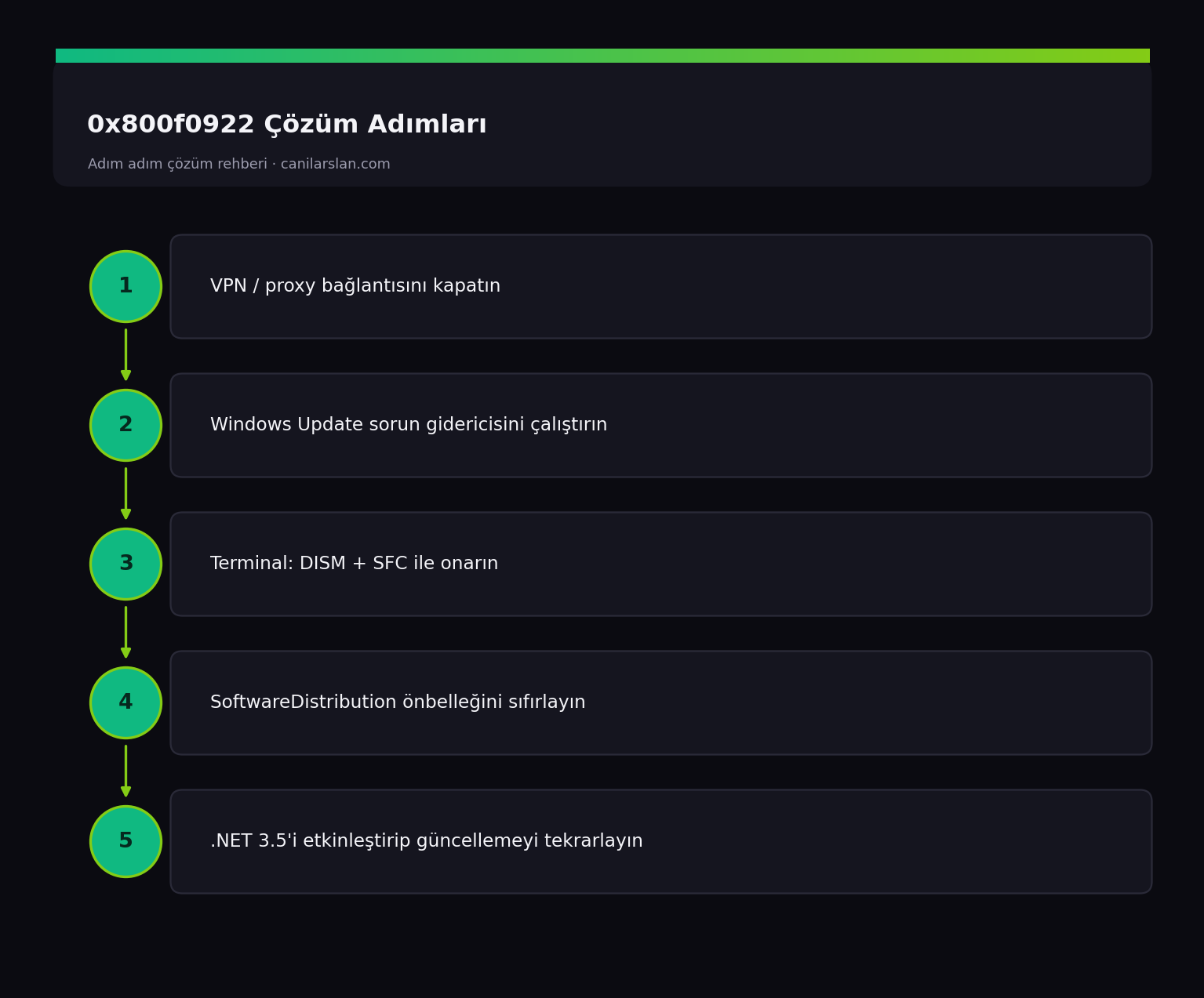
0x800f0922 Çözüm Adımları

0x800f0922 Hatasının Nedenleri

Bu hata, Windows Update bir özelliği veya kümülatif güncellemeyi yükleyemediğinde ortaya çıkar. En yaygın nedenler: EFI sistem bölümünde (ESP) yetersiz boş alan, başarısız .NET Framework kurulumu, bozuk güncelleme önbelleği, VPN bağlantısının güncelleme sunucusuna erişimi engellemesi ve sistem dosyalarındaki bozulmadır.

2025-12 ve 2026-01 güvenlik güncellemelerinde, EFI bölümünde 10 MB veya daha az boş alan bulunan cihazlarda kurulum genellikle %35-36 civarında, yeniden başlatma aşamasında başarısız oldu. Microsoft bu sorunu sonraki güncellemelerde gidermeye başladı.

Çözüm 1: VPN'i Kapatın ve Yeniden Deneyin

En basit çözümle başlayın: Aktif bir VPN veya proxy bağlantınız varsa kapatın. VPN, Windows Update'in Microsoft sunucularına erişimini engelleyebilir. Kapattıktan sonra Ayarlar > Windows Update > Güncellemeleri denetle ile tekrar deneyin.

Çözüm 2: Windows Update Sorun Gidericisini Çalıştırın

Ayarlar > Sistem > Sorun Giderme > Diğer sorun gidericiler yolundan Windows Update sorun gidericisini çalıştırın. Bu araç bozuk bileşenleri otomatik tespit edip sıfırlar ve çoğu basit güncelleme hatasını çözer.

Çözüm 3: Sistem Dosyalarını Onarın

Bozuk sistem dosyaları bu hatanın sık nedenidir. Yönetici Terminal'de şu komutları sırayla çalıştırın:

DISM /Online /Cleanup-Image /RestoreHealth
sfc /scannow

İşlem bitince yeniden başlatıp güncellemeyi tekrar deneyin.

Çözüm 4: Güncelleme Önbelleğini Sıfırlayın

Bozuk güncelleme önbelleğini temizlemek için yönetici Terminal'de servisleri durdurup önbellek klasörünü yeniden adlandırın:

net stop wuauserv
net stop bits
ren %systemroot%\SoftwareDistribution SoftwareDistribution.old
net start wuauserv
net start bits

Ardından güncellemeyi yeniden başlatın. Windows önbelleği sıfırdan oluşturacaktır.

Çözüm 5: EFI Bölümü Alanını ve .NET'i Kontrol Edin

Hata EFI bölümü dolu olduğu için çıkıyorsa, en sağlıklı çözüm Microsoft'un soruna yönelik en güncel güncellemesini yüklemektir; bu yüzden önce diğer bekleyen güncellemeleri kurun. Ayrıca Denetim Masası > Programlar > Windows özelliklerini aç/kapat yolundan .NET Framework 3.5'i etkinleştirip yeniden deneyin. Windows Sandbox açıksa, kapatıp denemek de bazı kullanıcılarda işe yaramıştır.

Sıkça Sorulan Sorular (SSS)

0x800f0922 hatası neden özellikle son güncellemelerde arttı?

2025 sonu güvenlik güncellemeleri, EFI sistem bölümünde çok az boş alanı olan cihazlarda kuruluma takıldı. Microsoft sonraki güncellemelerle bunu düzeltmeye başladı; en güncel güncellemeleri yüklemek genellikle sorunu giderir.

VPN kapatmak gerçekten işe yarıyor mu?

Evet, şaşırtıcı şekilde sık çözüm budur. VPN/proxy, güncelleme sunucularına bağlantıyı bozabilir. Kapatıp tekrar denemek en hızlı testtir.

Komutlar çözmezse ne yapmalıyım?

Microsoft Update Kataloğu'ndan ilgili KB güncellemesini manuel indirip kurmayı deneyin veya yerinde yükseltme (in-place upgrade) ile Windows'u dosyalarınızı koruyarak onarın.

Sonuç

0x800f0922, çoğunlukla disk alanı, bağlantı veya bozuk bileşen kaynaklı bir güncelleme hatasıdır. VPN'i kapatıp sorun gidericiyi çalıştırmak, ardından SFC/DISM ve önbellek sıfırlama çoğu vakayı çözer. EFI bölümü kaynaklı vakalarda en güncel güncellemeyi yüklemek kalıcı çözümdür.

İlgili Yazılar