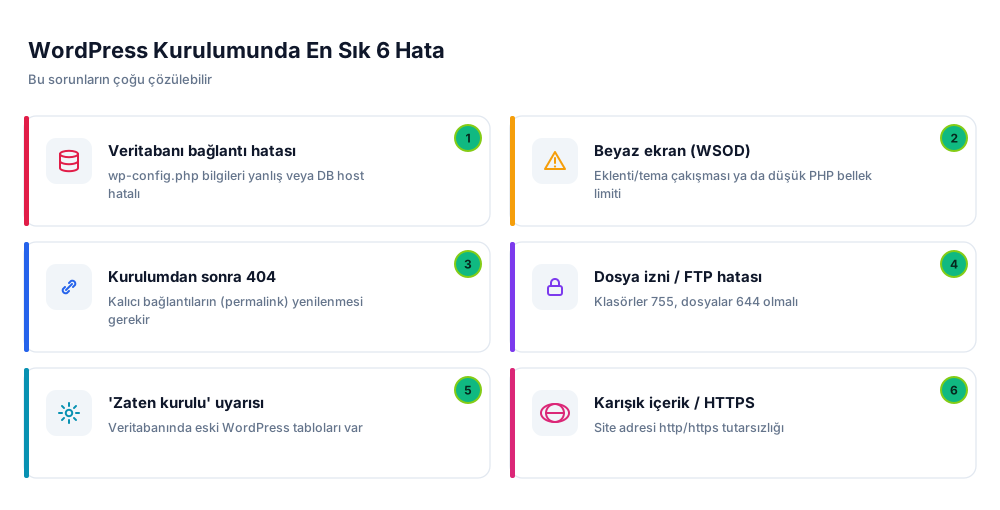
WordPress installation usually goes smoothly, but sometimes you may run into an error screen. The good news: nearly all of these errors are well-known and fixable problems. In this article you'll find the six most common errors encountered during WordPress installation along with a step-by-step fix for each.
The Most Common Installation Errors
1) Database Connection Error (Error establishing a database connection)
This is the most common error and usually stems from incorrect database credentials in wp-config.php.
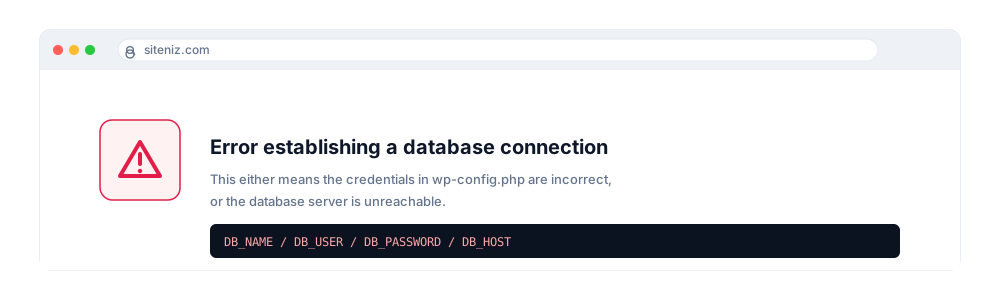
- Check the credentials: Make sure the
DB_NAME,DB_USER,DB_PASSWORDandDB_HOSTvalues in wp-config.php exactly match the ones you created in cPanel. - Verify the host: On most shared hosting
localhostis correct; if your provider gives a different host, use that one. - Check the privileges: The user must be added to the database with ALL PRIVILEGES.
- Reset the password: If in doubt, reset the user's password in cPanel and update wp-config.php accordingly.
2) White Screen (White Screen of Death)
If the site shows a completely blank, white screen, there is usually a PHP error. The cause is most often a plugin/theme conflict or an insufficient PHP memory limit.
- Enable debugging: Set
define('WP_DEBUG', true);in wp-config.php to see the actual error. - Increase the memory limit: Add
define('WP_MEMORY_LIMIT', '256M');to wp-config.php. - Disable plugins/theme: Temporarily rename the
wp-content/pluginsfolder over FTP to disable all plugins.
3) 404 Errors After Installation
If the homepage opens but inner pages return “404 Not Found”, the problem is with the permalinks.
- Log in to the WordPress dashboard, open Settings > Permalinks and click Save Changes without changing anything. This regenerates the
.htaccessrules. - On Apache servers, make sure the
.htaccessfile is writable and themod_rewritemodule is enabled.
4) File Permission / FTP Upload Errors
Errors like “Unable to write to the installation directory” or upload failures usually come from incorrect file permissions.
- Fix the permissions: Folders should be
755and files644. In your FTP client you can right-click a file and set its permissions. - Check ownership: Make sure the files belong to the correct user; if needed, ask your hosting support for help.
- Don't use 777: Wide-open permissions create a security risk and are usually unnecessary.
5) The “WordPress Is Already Installed” Warning
If you get an “It looks like it's already installed” warning when starting the setup, there are leftover tables in the database from a previous attempt.
- Go to cPanel > phpMyAdmin and delete the old WordPress tables from the relevant database (or start fresh with a clean, empty database).
- Creating a new database and updating wp-config.php to match it is also a quick fix.
6) Mixed Content / HTTPS Issues
If the design breaks after switching the site to https, or you see a “not secure” warning, the page is still loading resources over http (mixed content).
- Update the WordPress Address and Site Address with
https://under Settings > General. - Update the old http links in the database to https using a search-and-replace plugin.
- Verify in cPanel that SSL is installed correctly.
A General Approach to Fixing Errors
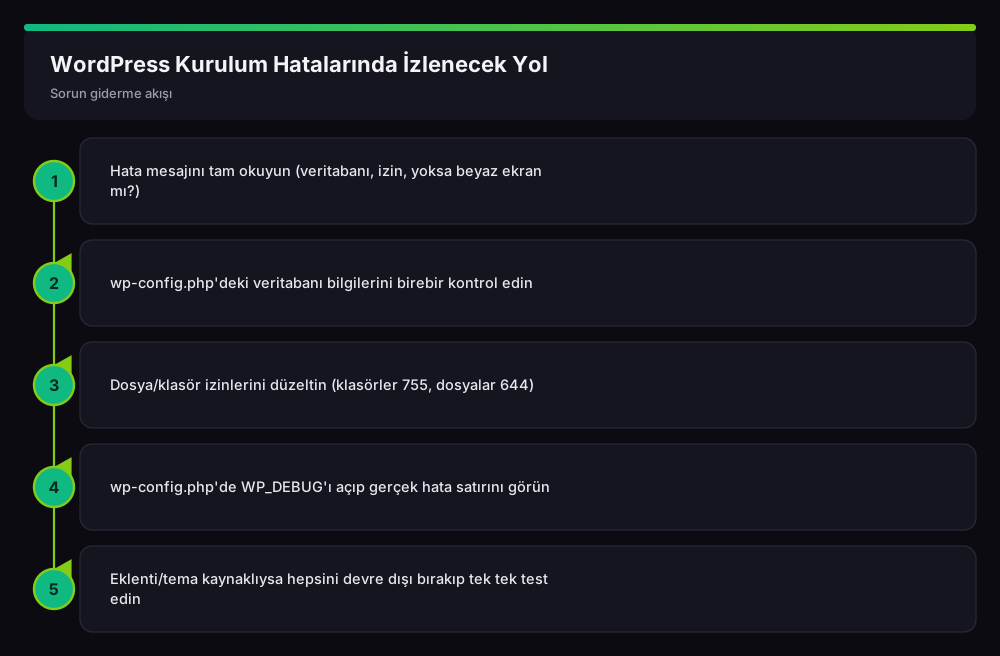
Whatever the error, follow a logical order: read the error message in full, verify the wp-config.php credentials, check the permissions, see the real error with WP_DEBUG, and if it's plugin/theme related, test by disabling them.
Frequently Asked Questions (FAQ)
What most often causes the database connection error?
Almost always an incorrect database name, user, password or host in wp-config.php. Compare these four values exactly against the ones in cPanel.
Nothing shows up on the white screen — how do I find the error?
You can bring the actual PHP error to the screen by setting WP_DEBUG to true in wp-config.php; set it back to false once the problem is solved.
All inner pages return 404 — what should I do?
Opening Settings > Permalinks and clicking Save Changes is usually enough; this regenerates the .htaccess rules.
Can I prevent these errors entirely?
Most of them, yes: correct database credentials, correct file permissions, an up-to-date PHP version and taking a backup before installation prevent the bulk of these errors.
Conclusion
Nearly all WordPress installation errors are well-known and fixable problems. Verifying the database credentials, fixing file permissions, regenerating the permalinks and seeing the real error with WP_DEBUG solves the majority of cases. If you'd like to revisit the installation from the start, you can return to our WordPress installation guide.
Related Guides
- WordPress Installation: A Detailed Step-by-Step Guide from Scratch
- What Is cPanel and How Do You Use It? (Beginner's Guide)
Need help with your website, hosting or SEO? Get in touch with me.