When you click the Start button and the menu won't open, the taskbar freezes, or the icons don't respond to clicks, your work grinds to a halt. This is an occasional but solvable issue on Windows 11, usually related to Windows Explorer (explorer.exe) or a corrupted system component. Here is the step-by-step fix.
Common Causes of the Problem
The Start menu and taskbar are drawn by the Windows Explorer process. When this process hangs or the related system files become corrupted, the menu and bar stop responding. The most common causes are: explorer.exe hanging, corrupted system files, a faulty update, and a damaged user profile.
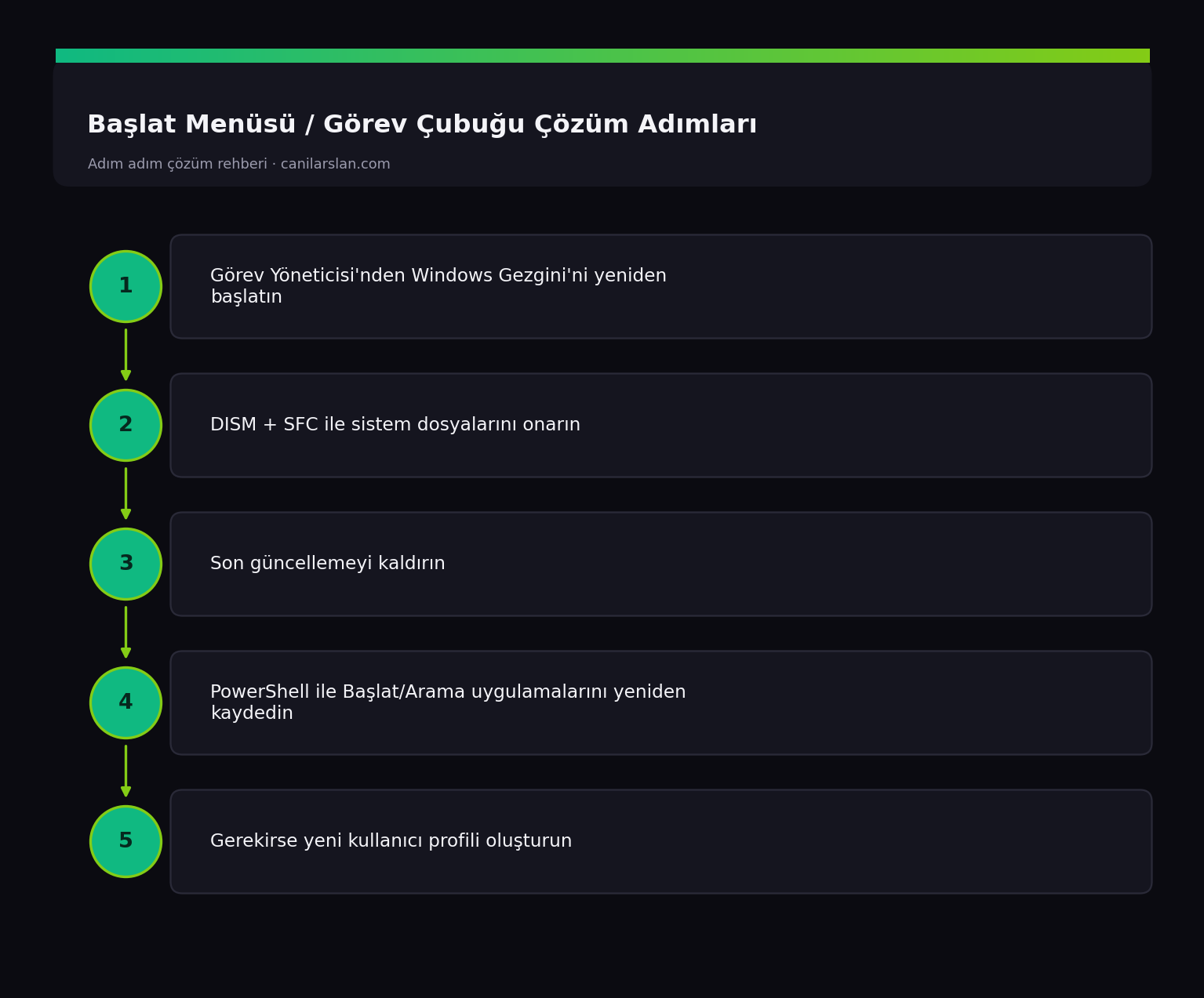
Fix 1: Restart Windows Explorer
The fastest fix: open Task Manager with Ctrl + Shift + Esc (this shortcut works even when Start doesn't). On the Processes tab, find Windows Explorer, right-click it and choose Restart. The taskbar and Start menu are fixed instantly in most cases.
Fix 2: Repair System Files
If restarting isn't a permanent fix, you may have corrupted system files. In Task Manager, choose File > Run new task > type cmd, check the "create this task with administrative privileges" box, then run:
DISM /Online /Cleanup-Image /RestoreHealth
sfc /scannow
Restart once the process is finished.
Fix 3: Uninstall the Problematic Update
If the issue started after a Windows update, go to Settings > Windows Update > Update history > Uninstall updates, remove the latest cumulative update and test. (When Start isn't working, you can reach Settings with the Win + I shortcut.)
Fix 4: Re-register the Start and Search Apps
If the Start menu and Search are broken, re-register them with PowerShell. Open Task Manager > Run new task > powershell (as administrator) and run this:
Get-AppxPackage -AllUsers | Foreach {Add-AppxPackage -DisableDevelopmentMode -Register "$($_.InstallLocation)\AppXManifest.xml"}This may take a few minutes; restart when it's done. This command repairs corrupted system apps.
Fix 5: Try a New User Profile
If the problem only happens on your account, the profile may be corrupted. Create a new local account under Win + I > Accounts > Other users and switch to it. If Start works properly on the new account, you can move your data over to the new profile.
Frequently Asked Questions (FAQ)
How do I open Task Manager while Start isn't working?
The Ctrl + Shift + Esc shortcut works independently of the Start menu. You can also reach Task Manager from the Ctrl + Alt + Del screen.
Is restarting Windows Explorer risky?
No. Only the desktop and taskbar disappear for a few seconds and then come back; your open programs and files are not affected.
The problem returns on every startup — what's the permanent fix?
It's usually caused by a corrupted system file or an update. Running SFC/DISM and uninstalling the latest update provides a permanent fix; if it persists, a new profile or a system reset may be needed.
Conclusion
Start menu and taskbar issues are most often solved instantly by restarting Windows Explorer. For persistent cases, SFC/DISM, uninstalling the latest update, and re-registering the system apps are effective. If the problem is limited to a single account, a new profile is the definitive fix.