If your computer tries to install an update, then says "We couldn't complete the updates, undoing changes" and reverts to its previous state, and this repeats on every boot, you're stuck in an update loop. This frustrating situation has a few fixable causes. Here is the step-by-step fix.
Why Does This Loop Happen?
When Windows can't install an update, it rolls back the changes to protect the system; but when the same update is retried, a loop forms. The most common causes are: a corrupted update cache, damaged system files, insufficient disk space, a stuck update component, and sometimes a specific problematic KB update.
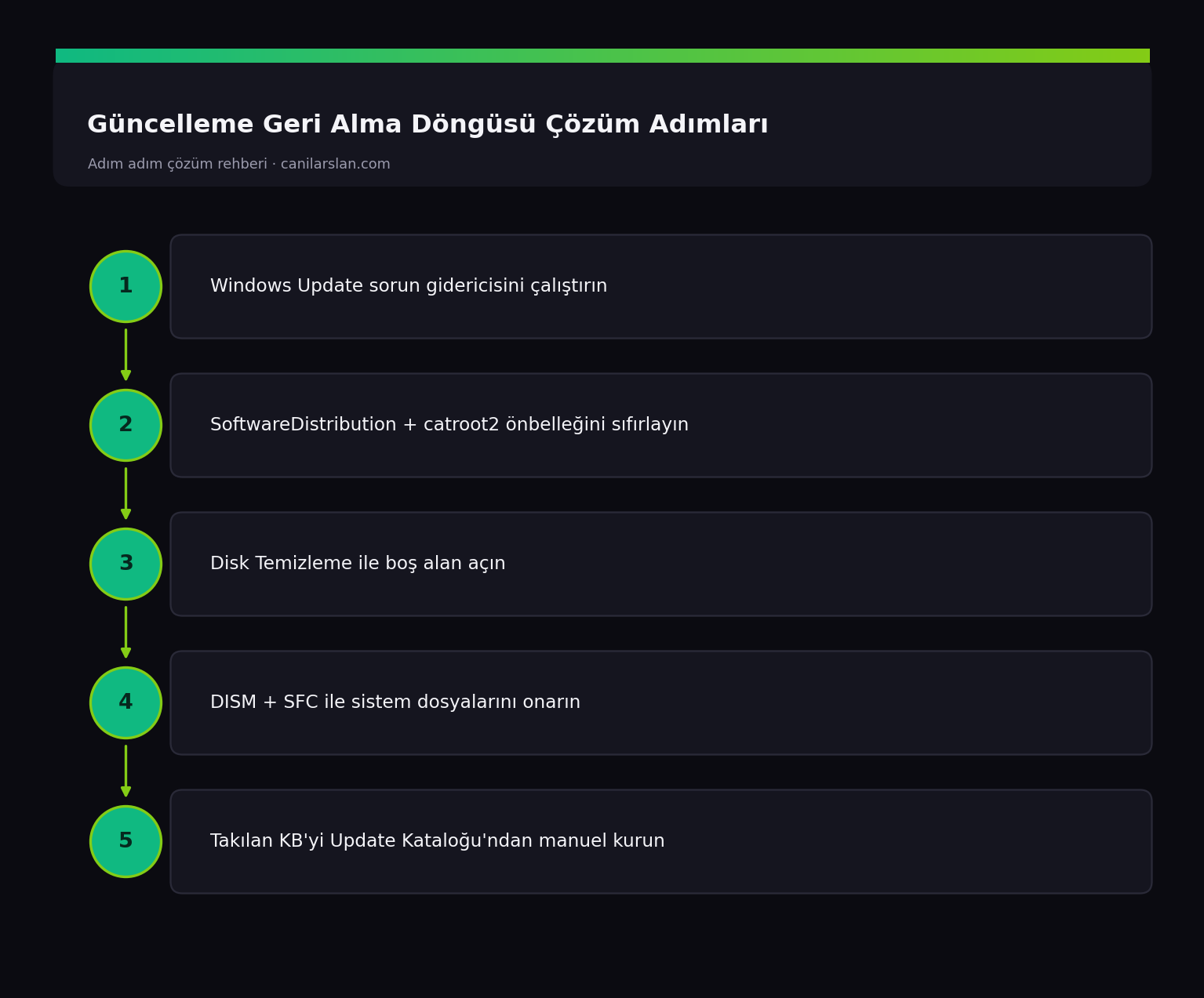
Fix 1: Run the Update Troubleshooter
First, run the troubleshooter under Settings > System > Troubleshoot > Other troubleshooters > Windows Update. This tool detects and resets stuck components and automatically resolves a significant portion of these loops.
Fix 2: Reset the Update Components and Cache
A corrupted cache is the leading cause of this loop. In an administrator Terminal, stop the services and refresh the cache folders:
net stop wuauserv
net stop bits
ren %systemroot%\SoftwareDistribution SoftwareDistribution.old
ren %systemroot%\System32\catroot2 catroot2.old
net start wuauserv
net start bits
Then restart and try the update again. Windows rebuilds the cache from scratch.
Fix 3: Free Up Disk Space
Updates require enough free space (at least a few GB) on the system drive. Use Settings > System > Storage or the Disk Cleanup tool to clear temporary files, old Windows update files, and the Recycle Bin. Insufficient space is a frequently overlooked cause of the rollback loop.
Fix 4: Repair System Files
Corrupted system files prevent the update from completing. In an administrator Terminal:
DISM /Online /Cleanup-Image /RestoreHealth
sfc /scannow
When the process finishes, restart and try the update again. If you're stuck in the loop, it's more reliable to run these commands in Safe Mode.
Fix 5: Manually Install or Pause the Problematic Update
If the same KB update keeps getting stuck, try downloading it from the Microsoft Update Catalog (catalog.update.microsoft.com) for your version and installing it manually. A manual installation gets past loops caused by a corrupted download. If the update still causes trouble, briefly pausing it and waiting for Microsoft's fix is also an option.
Frequently Asked Questions (FAQ)
Can I turn off the computer on the 'Undoing changes' screen?
If the process isn't progressing (the percentage hasn't changed for a long time), you can force a shutdown after waiting; then boot into Safe Mode and reset the components. If possible, wait for the process to finish.
The same update keeps coming back and always gets rolled back, what should I do?
Reset the cache (SoftwareDistribution and catroot2), run SFC/DISM, then install the update manually from the Microsoft Update Catalog. This is the most effective method for a single stubborn KB.
I can't get out of the loop, the system won't boot at all?
Force a shutdown 3 times during boot to enter the recovery environment, then uninstall the latest quality update from there, or use System Restore to roll back to before the update.
Conclusion
The update rollback loop is mostly caused by a corrupted cache, insufficient disk space, or damaged system files. Running the troubleshooter, resetting the update components, and SFC/DISM resolve most cases. If a single KB is stuck, installing it manually breaks the loop.