If your screen suddenly turns blue while your computer is running and it restarts with the message :( CRITICAL_PROCESS_DIED, it means a vital Windows system process has terminated unexpectedly. As scary as this error looks, in most cases it can be fixed without a clean install. Below I explain the cause and a step-by-step permanent solution.
What Does CRITICAL_PROCESS_DIED Mean?
This stop code indicates that a background process essential for Windows to run (for example csrss.exe or wininit.exe) has crashed. Since the system cannot run safely without these processes, Windows shows a blue screen and restarts to protect itself.
The most common causes are: corrupt or incompatible drivers (especially graphics, storage and network drivers), a faulty Windows update, corrupted system files, RAM or an SSD that is starting to fail, and sometimes malware.
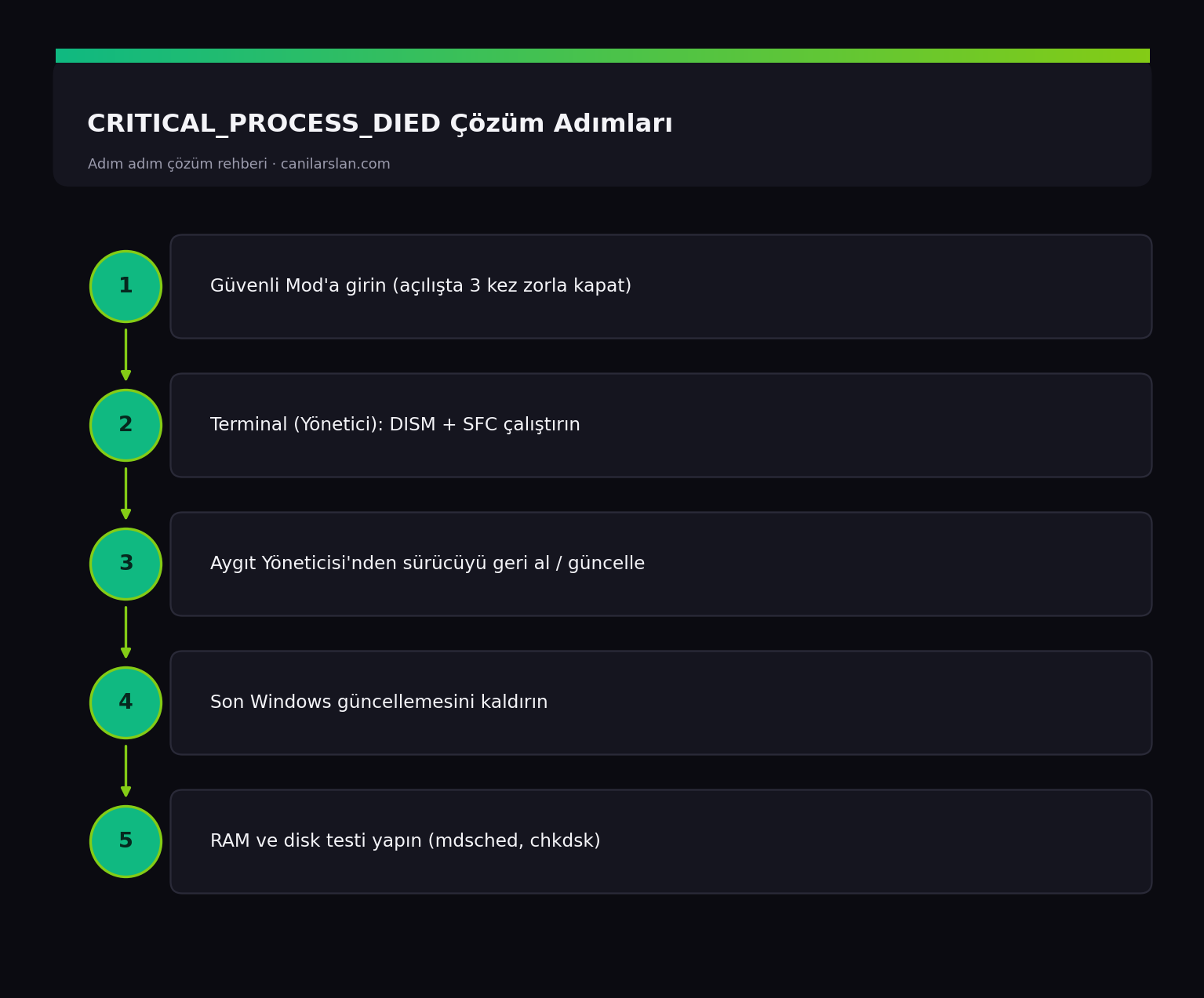
Fix 1: Boot Into Safe Mode
If the system keeps showing a blue screen and won't boot, first enter Safe Mode. Force-shut down the computer 2-3 times during startup; on the third attempt Windows automatically opens the Automatic Repair screen.
From there follow Advanced options > Troubleshoot > Advanced options > Startup Settings > Restart, and at startup press 5 to select "Safe Mode with Networking". Safe Mode loads only the basic drivers; if the system runs stably here, the problem is most likely a driver or third-party software.
Fix 2: Repair System Files (SFC and DISM)
Corrupted system files are the most common cause of this error. Right-click Start and open Terminal (Admin), then run the following commands in order:
DISM /Online /Cleanup-Image /RestoreHealth
sfc /scannow
The DISM command repairs corruption in the Windows image, while SFC scans and fixes protected system files. Once the process finishes, restart your computer. It is important to run the two commands in this order.
Fix 3: Roll Back or Update the Problematic Driver
If the error started after a new driver update, open Device Manager, right-click the relevant device (usually Display adapters) and choose Properties > Driver > Roll Back Driver.
If instead the problem is caused by an outdated driver, do the opposite and download and install the latest driver from the manufacturer's official site (NVIDIA, AMD, Intel, Realtek). The generic drivers delivered through Windows Update aren't always the most stable.
Fix 4: Uninstall the Latest Update
If the error appeared right after a Windows update, go to Settings > Windows Update > Update history > Uninstall updates, remove the most recently installed cumulative update and test the system.
Fix 5: Test the Hardware (RAM and Disk)
If software fixes don't help, there may be a hardware failure. To test the RAM, run the Windows Memory Diagnostic tool (mdsched.exe). To check your disk, run the chkdsk C: /f /r command in an administrator Terminal and confirm the restart. If you use an SSD, check the disk health (SMART) with the manufacturer's diagnostic tool.
Frequently Asked Questions (FAQ)
Does the CRITICAL_PROCESS_DIED error delete my data?
No, the error itself does not delete your data. However, if the error is caused by a failing disk there may be a risk of data loss; so back up your important files at the first opportunity.
The blue screen keeps repeating and I can't get into the system, what should I do?
Force-shut down the boot 3 times to trigger Automatic Repair, enter Safe Mode from there and run SFC/DISM, or return to a working point with System Restore.
What can I do to prevent this error?
Keep your drivers up to date from official sources, check your disk regularly, use a reliable antivirus, and create a system restore point before important updates.
Conclusion
CRITICAL_PROCESS_DIED is usually a fixable error caused by a driver or a corrupt system file. The Safe Mode + SFC/DISM combination solves the vast majority of cases. If the hardware tests pass as well and the problem persists, backing up your data and doing a clean install will be the most definitive solution.