If you turn on your computer and are greeted by the INACCESSIBLE_BOOT_DEVICE blue screen instead of the Windows logo, it means Windows cannot access the system disk it needs to boot. This is usually a storage driver, BIOS setting or faulty update issue. A step-by-step fix is below.
The Most Common Causes of the Error
This error appears when Windows cannot recognize the storage drive during boot. The main causes are: a faulty Windows update, the wrong SATA controller mode (AHCI/RAID/IDE), corrupt or missing storage drivers, a damaged boot configuration (BCD) and, rarely, a physical disk failure.
If the error appears specifically after an update, a BIOS update or a disk cloning operation, it can almost always be fixed at the software level.
Solution 1: Enter the Windows Recovery Environment
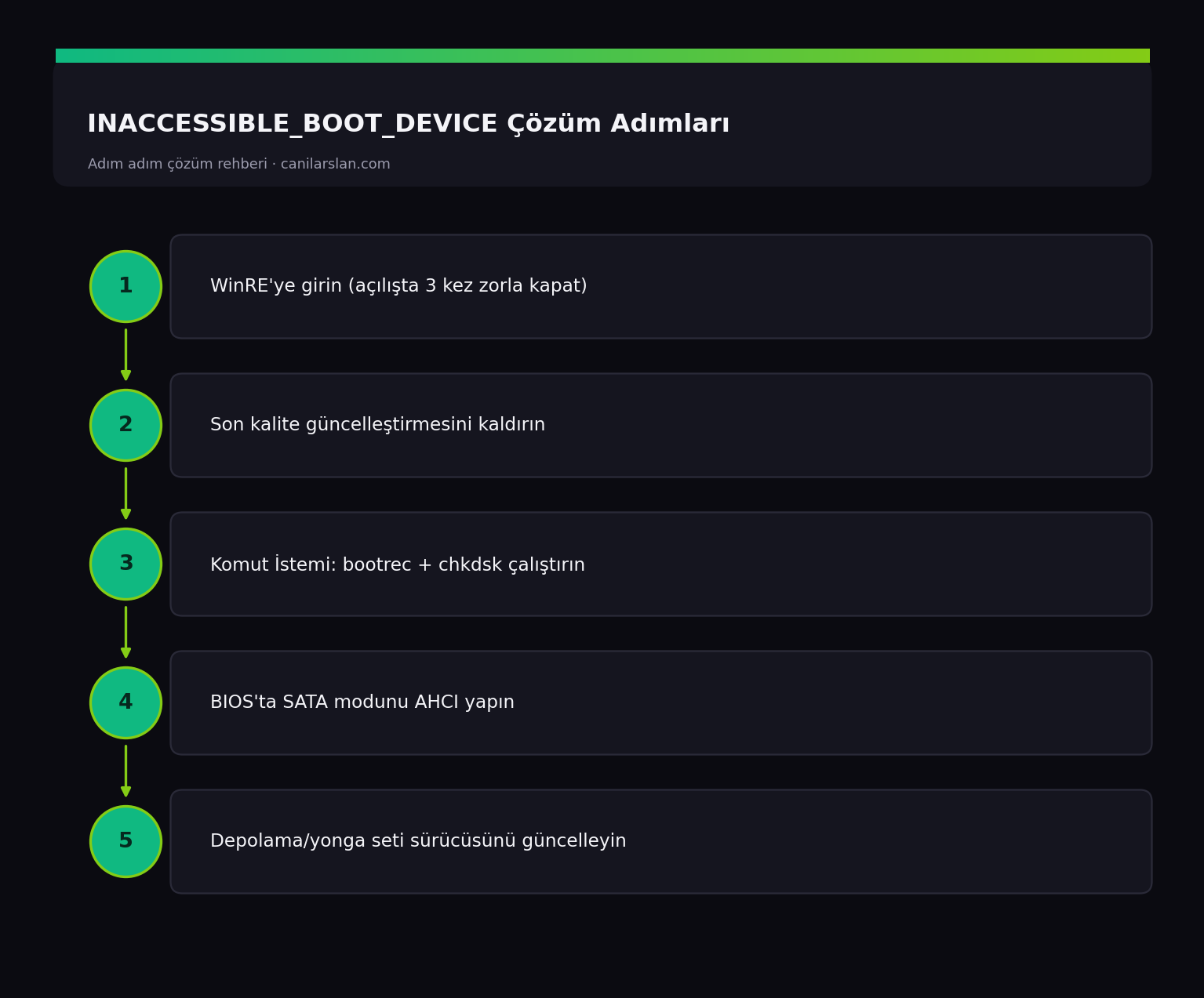
Since the system won't boot, you need the Windows Recovery Environment (WinRE). Force-shut down the computer 3 times during startup; on the third attempt the Automatic Repair > Advanced options screen appears automatically. From here you can reach all the repair tools.
Solution 2: Uninstall the Latest Update
If the error started after an update, try Troubleshoot > Advanced options > Uninstall Updates > Uninstall latest quality update. By removing the problematic cumulative update, this often makes the system bootable again.
Solution 3: Repair the Boot Files
Open the Command Prompt from Advanced options and rebuild the boot configuration:
bootrec /fixmbr
bootrec /fixboot
bootrec /scanos
bootrec /rebuildbcd
Then run the chkdsk C: /f /r command to check the disk file system. These commands repair corrupt boot records and file system errors.
Solution 4: Check the SATA Mode in the BIOS
If the storage controller mode in the BIOS was changed by accident (for example to RAID or IDE), Windows cannot see the disk. At startup, enter the BIOS with the Del / F2 key, set the mode to AHCI under Storage / SATA Configuration, then save and exit. If the computer was originally installed with AHCI, this setting usually fixes it.
Solution 5: Update or Roll Back the Storage Driver
If you can boot into Safe Mode, update the driver under Device Manager > IDE ATA/ATAPI controllers or Storage controllers, or roll back the latest update. Installing the most recent chipset drivers from your motherboard manufacturer's site also provides a permanent solution.
Frequently Asked Questions (FAQ)
Does INACCESSIBLE_BOOT_DEVICE mean my disk is damaged?
Not necessarily. In most cases the cause is a faulty update, the wrong SATA mode or a damaged boot record. A physical disk failure is one of the rarer causes; you can confirm it with chkdsk and a SMART check.
I ran the commands but could 'C:' be showing the wrong drive letter?
Yes, drive letters can change in the recovery environment. Use the diskpart > list volume command to find the volume where Windows is installed and run chkdsk with the correct letter.
What if none of the solutions work?
Connect the disk to another computer and back up your data, then perform a clean installation. If the disk's SMART values are poor, you may need to replace the disk.
Conclusion
INACCESSIBLE_BOOT_DEVICE is almost always a fixable boot problem. First uninstall the latest update, then repair the boot with bootrec and chkdsk, and if needed set the SATA mode to AHCI in the BIOS. These steps resolve the vast majority of cases.